
BUSMASTER XCP: Read values and acquire continuous DAQ data
Applies to BUSMASTER 3.2.2.50. Screenshots use the Chinese interface.
5. Connect and read values once
Section titled “5. Connect and read values once”- Confirm that the ECU or teaching simulator is ready, then connect CAN in the BUSMASTER main interface.
- Reopen the XCP main window, check that CAN at the bottom is Connected, and click Connect at the top.
- Wait for XCP ECU to become Connected. Select the EngineSpeed row on the right and click Read Now, then select and read SpeedLimit. Use Ctrl or Shift to select multiple rows if required.
- Check Value, Unit, Quality and Last Result. The example should show valid numbers, rpm, Good quality and Read succeeded. SpeedLimit starts at 305; EngineSpeed depends on when it is read.
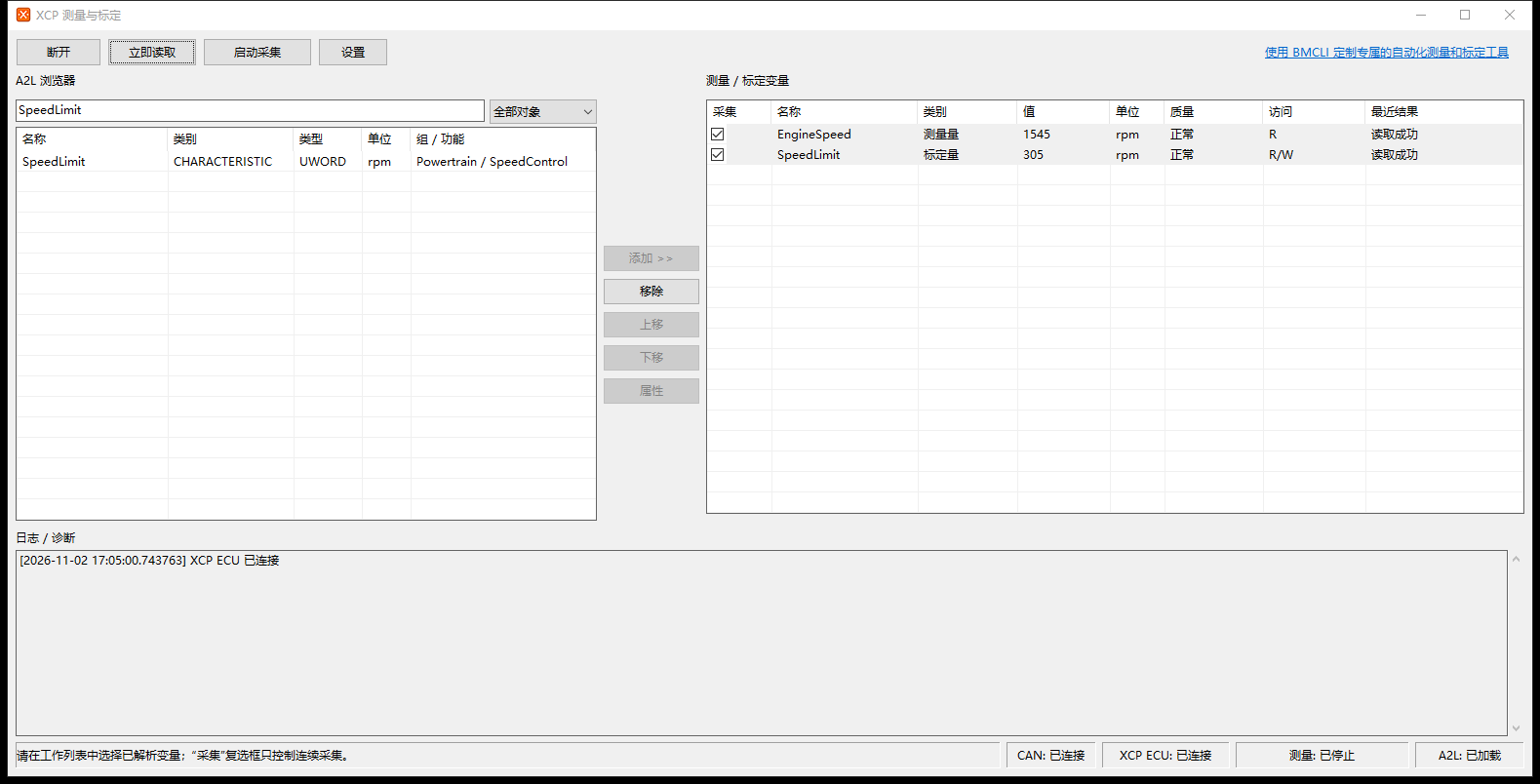
Single read: check the physical value, unit, quality and last result.
For a single read, select the target rows and click Read Now. For continuous acquisition, check the objects’ Acquire boxes and click Start Acquisition.
6. Start continuous acquisition and inspect the curves
Section titled “6. Start continuous acquisition and inspect the curves”- Check Acquire for both variables and click Start Acquisition. The button becomes Stop Acquisition and the measurement state at the bottom should be DAQ running.
- EngineSpeed continues to update while SpeedLimit holds its reference value. Adding, removing or moving objects and changing acquisition selection are disabled while running; stop acquisition before editing the workset.
- Hide the XCP window and open CAN → Signal Graph. Confirm that both XCP variables are listed and that new samples appear.
- If values exceed the default 0–100 range, select Y or XY and click Auto Range. Click Follow Latest to continue following the newest time. Auto Range pauses time-axis following; selecting Follow Latest again moves to the latest time.
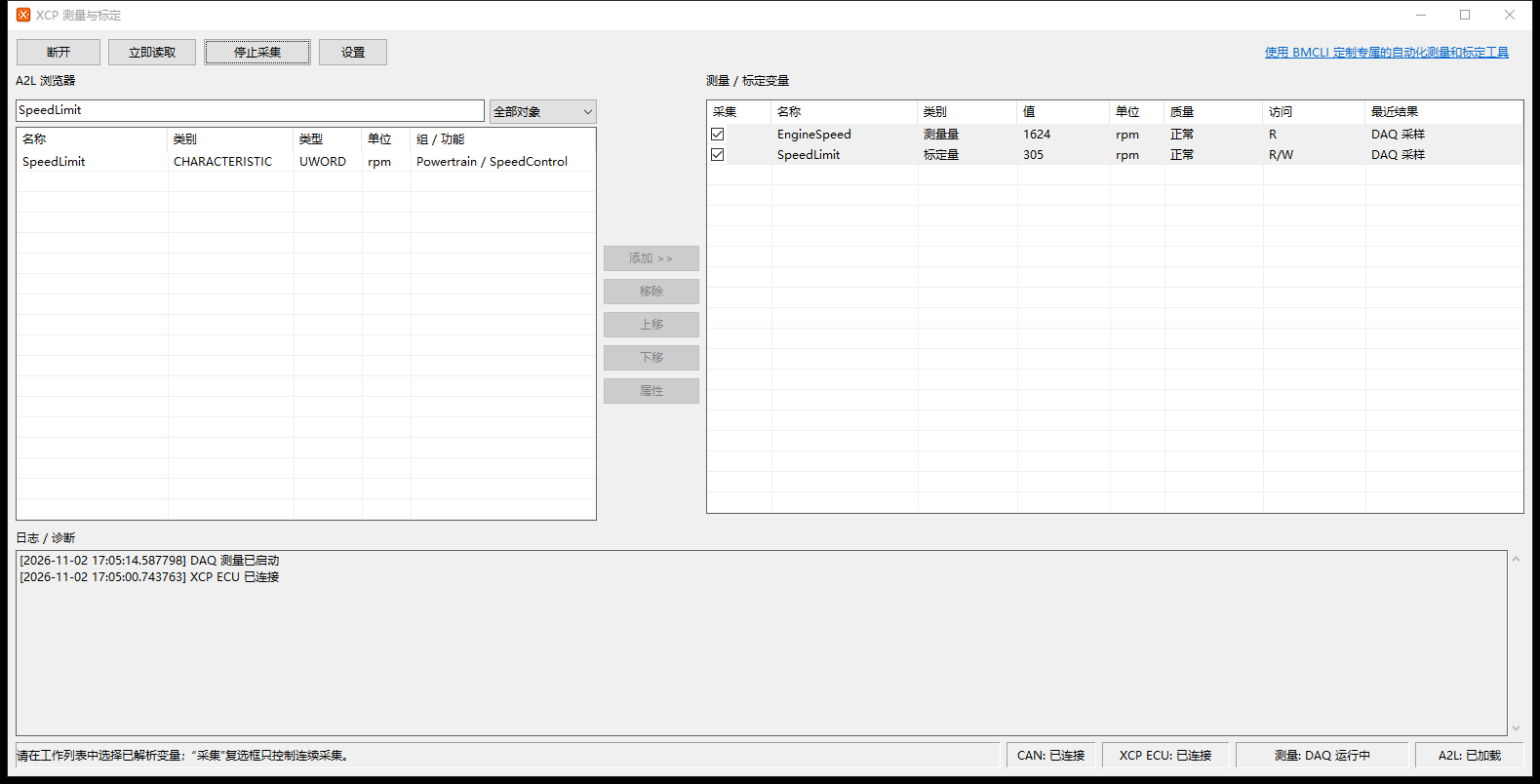
Workset values and acquisition state while DAQ is running.
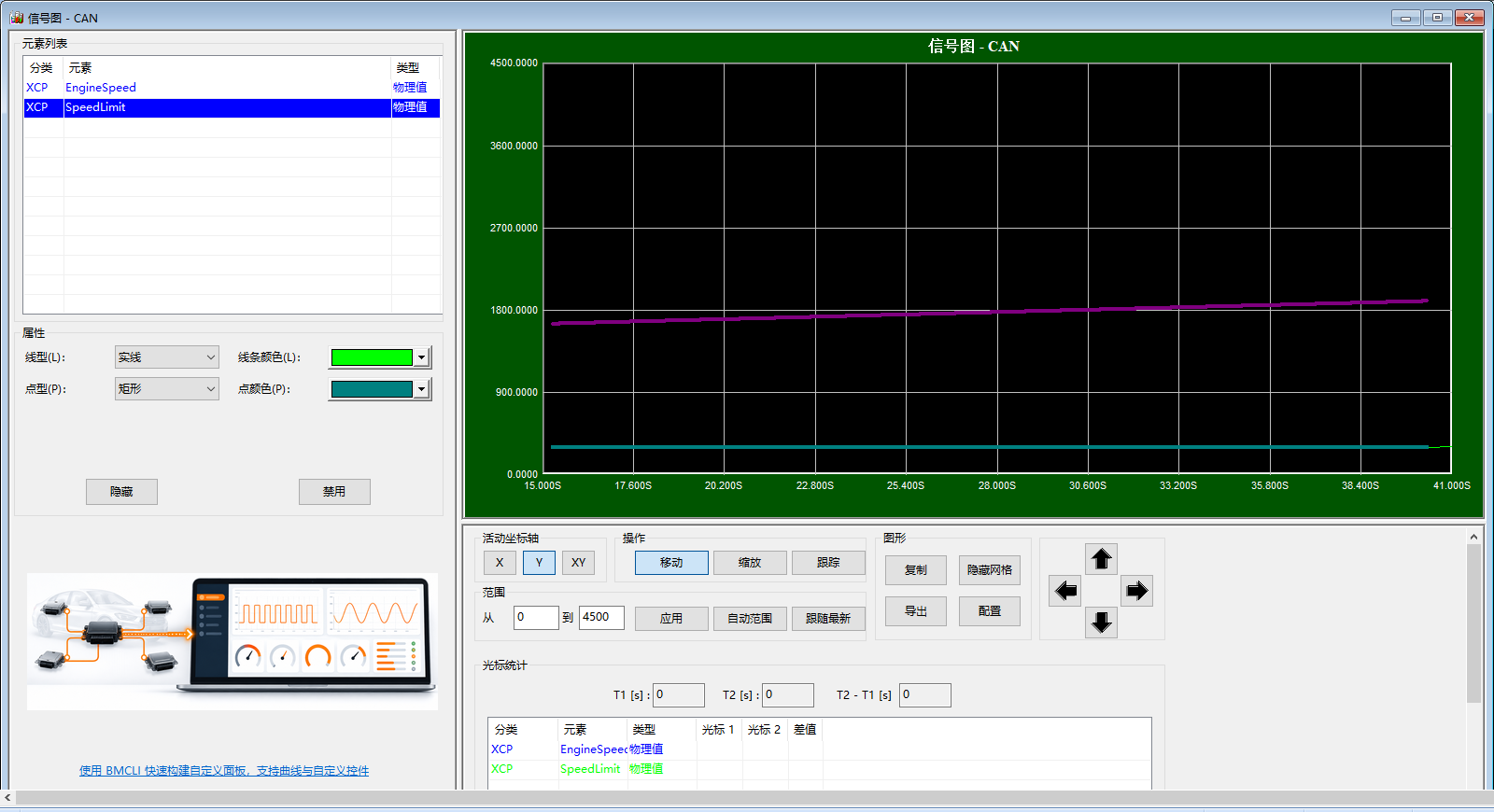
EngineSpeed changes over time while SpeedLimit stays at 305.
DAQ samples on device events, while the interface redraws at its display update interval. Check the run state, graph sample times and exported data to inspect acquisition results. Constant variables appear as horizontal lines.
Choose on-demand reads, polling, Dynamic DAQ or Automatic
Section titled “Choose on-demand reads, polling, Dynamic DAQ or Automatic”| Mode | Starting point | Settings and operation |
|---|---|---|
| On-demand only | Check connection and a few objects | Click Read Now to obtain a value once. |
| Polling | ECU DAQ capabilities are not yet known | Read checked objects at the configured interval. Increase the interval or reduce the number of objects if load is too high. |
| Dynamic DAQ | ECU with confirmed Dynamic DAQ support; this teaching simulator | Driven by ECU events, so select the correct event channel. This example uses event 3, with the simulator period set to 10 ms. |
| Automatic | Let the software try DAQ first | The software first configures DAQ. If the capability is unsupported or the ECU rejects the configuration, it shows the reason and switches to polling. Check the measurement state after starting to identify the active mode. For communication timeouts, recover the session as described in section 9. |
This example selects Dynamic DAQ, event channel 3, with a sampling period of 10 ms.
Series overview · Previous: Workset and curves · Next: Calibration
Use the download center for current and archived BUSMASTER releases.