
Enable/Disable Filter
Filter (App Filter) can be enabled/disabled-using tool bar buttons or menu. Filters must have been configured prior to this. (Refer section Configure - App Filter and Display Filter).
Display Filter
Section titled “Display Filter”To enable message window filtering select CAN –> Message Window –> Enable Filters or press Display Filtertoolbar button shown in figure below.
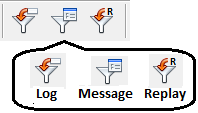
To disable filtering select the toolbar button again. Filtering will toggle on each press.### Log Filter
To enabling filter for logging select CAN –> Logging –> Enable Filters or press Log Filter toolbar button shown in the fig. The filter will be applied on messages that are received after enabling the filter. To disable select the same menu item or toolbar button again. Filtering will toggle on each press.### Replay Filter
To enabling filter for replay select CAN –> Replay –> Enable Filters or press Replay Filter toolbar button shown in the fig. To disable select the same menu item or toolbar button again. Filtering will toggle on each press.> Note: Note Message filter and Log filter will be applied only for the incoming messages after enabling the filter. Filters can be Enabled/Disabled irrespective of tool connection status.
Authoritative source: BUSMASTER DITA help source filter.dita, compiled into BUSMASTER.CHM with the application.