Software and firmware updates
Update BUSMASTER
Section titled “Update BUSMASTER”Confirm the installed BUSMASTER version when a required function is missing or a CAN FD, UDS, logging, or compatibility issue occurs. Use the BUSMUST download center to obtain the latest supported installer or an archived release required by an existing project.
Update commands are normally available on the Help ribbon:
Software Update -> Update Now: checks for an application update.Software Update -> AutoUpdate: enables automatic update checks.
Save the current BUSMASTER configuration before upgrading so channel, database, and log-path settings can be restored if needed.
Update device firmware
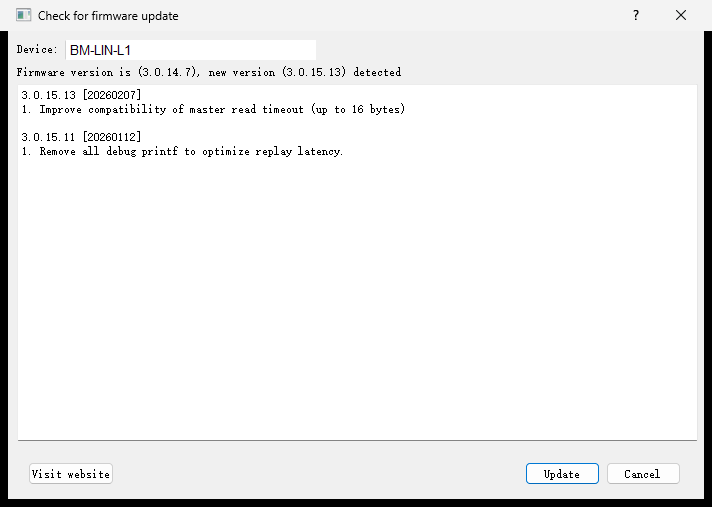
Section titled “Update device firmware”Supported BUSMUST devices can be updated with a firmware tool or BUSMASTER’s firmware update function. Firmware releases may correct device-side communication, logging, replay, compatibility, or performance issues.
The Help ribbon normally provides:
Firmware Update -> Update Now: checks firmware for a connected device.Firmware Update -> AutoUpdate: enables automatic firmware checks.
The update window displays the device model, current firmware, available version, and release notes. Only compatible, correctly connected devices appear.
Update decisions must be tied to the exact model and PID. Even when two devices belong to the same series, use the same source project, or were previously released together, they must not automatically share a firmware package or update note. For example, X2R (E122) and X4R (E142) must each use the update result matched to that exact model.
When a customer reports that an older release lacks a required capability, use the update history to identify the affected scope and whether a later release resolved it. If the latest stable firmware for that exact model is confirmed to contain the capability or fix, the normal next step is to upgrade to that matched stable release and retest. Historical differences such as route or TxTask capacity are primarily diagnostic context; escalate to engineering when the current release still blocks use.
Before updating:
- Record the device model and current firmware version.
- Confirm the PID, hardware revision, and target model reported by the update window.
- Use firmware intended for that exact model.
- Do not remove power, unplug USB, or disconnect Ethernet during the update.
- If an update fails, do not repeatedly apply an unverified image. Contact BUSMUST Support with the model and version information for recovery guidance.
Downloads
Section titled “Downloads”Use the BUSMUST download center for BUSMASTER, drivers, SDK packages, manuals, firmware, and version history.
Source: BUSMUST technical knowledge base software-firmware-update.md. This public guide is maintained by the website content pipeline. Use the download center for current and archived software releases.
Software and firmware update
Section titled “Software and firmware update”These original screenshots come from the BUSMASTER manual or illustrated guide and show the actual workflow.