
BUSMUST CAN/CAN FD Device Configuration
BUSMASTER can work with BUSMUST USB CAN/CAN FD devices and BUSMUST network-capable CAN/CAN FD devices through the BUSMUST driver. Select CAN -> Driver Selection -> BUSMUST USB-CAN(FD), then open CAN -> Channel Configuration to map physical channels to BUSMASTER channels.
Channel Mapping
Section titled “Channel Mapping”The hardware selection window lists available BUSMUST channels and configured BUSMASTER channels. Move the channels that you want to use into the configured list. The configured order defines the channel numbers used by the transmit window, message window, logging, replay, diagnostics, and signal tools.
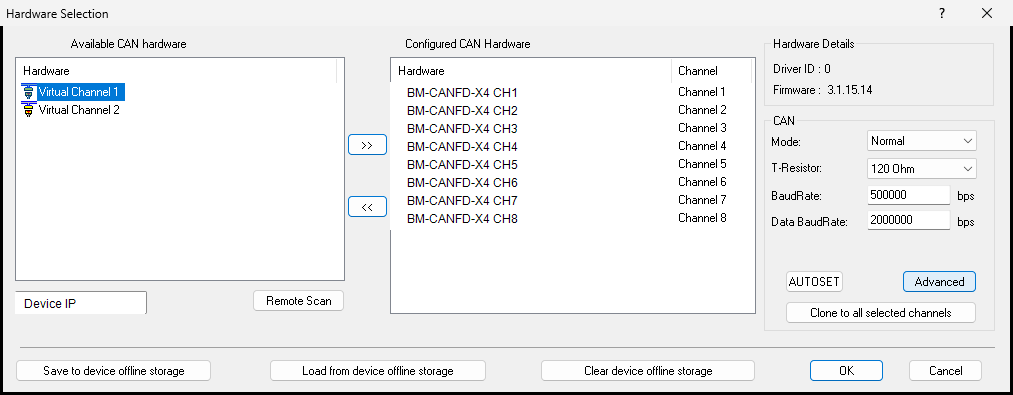 BUSMUST CAN/CAN FD hardware selection
If the hardware channel list changes after a reconnect, reopen channel configuration and confirm that the logical channel mapping still matches the physical device ports.### CAN and CAN FD Parameters
For each configured channel, set the operating mode, nominal bit rate, data bit rate, sample point, and terminal resistor option as required by the bus.
- Mode: selects Classic CAN, CAN FD normal mode, listen-only mode, loopback mode, non-ISO mode, or no-ACK mode when supported by the selected hardware and firmware.
- BaudRate: sets the nominal or arbitration phase bit rate.
- Data BaudRate: sets the CAN FD data phase bit rate. This field is not used by Classic CAN mode.
- Sample Point: sets the nominal phase sample point. BUSMUST devices commonly use 80 percent as a practical default.
- T-Resistor: enables or disables the device-side 120 ohm terminal resistor when the device supports it.
Classic CAN uses only the nominal bit rate. CAN FD uses the nominal bit rate for arbitration and the data bit rate for the payload phase when BRS is enabled.### AUTOSET
AUTOSET attempts to detect suitable CAN bit-rate parameters from bus traffic and writes the detected values back to the configuration fields. Use AUTOSET only when the device is connected to an active CAN bus.### Clone to Selected Channels
When multiple channels use the same bus parameters, configure one selected channel and apply the same parameters to the other selected channels. This reduces repeated setup work for multi-channel devices such as X4, X8, X2R, X4R, or GWR series products.### Remote Scan
Remote Scan is used for BUSMUST devices that are reachable through Ethernet or gateway-style access. Use it to discover remote channels before mapping them to BUSMASTER channels. The exact network setup depends on the product model and network environment.### Save, Load, and Clear Device Configuration
Supported BUSMUST devices can save selected configuration items into device-side storage. This allows the device to keep important settings such as bit rate, CAN mode, terminal resistor, and hardware filters after the PC software disconnects.
Use Save to write the configuration to the device, Load to read the stored configuration back, and Clear to remove the stored device configuration. These operations affect device-side storage, not only the current BUSMASTER configuration file.
Authoritative source: BUSMASTER DITA help source BUSMUST_CANFD_Channel_Configuration.dita, compiled into BUSMASTER.CHM with the application.