
LIN Simulation in BUSMASTER
Introduction:
BUSMASTER can be used as master to transmit master requests and as slave to respond to master requests. User can monitor/analyze the LIN messages using BUSMASTER.The following steps are required to Configure the BUSMASTER for transmission of frame headers or transmission/reception of LIN messages.
1. Cluster Configuration:
To Transmit\Receive the LIN Messages BUSMASTER has to be configured with LIN Baud Rate and Version.Refer /docs/busmaster/reference/topics/lin-cluster-configuration/ Section for more Information. To enable master mode for LIN channel for transmitting frame headers, check the Enable Master Mode check box under LIN Network Settings
2. Schedule Table Configuration:
Configure Schedule Table window can be used to select schedule table/frame headers for transmission imported from the loaded LDF file if BUSMASTER is used as master. Refer /docs/busmaster/reference/topics/lin-schedule-table-configuration/ for more information.
3. Controller (Driver) Selection:
BUSMASTER can be connected to Physical LIN Network using LIN Controller.Refer /docs/busmaster/reference/topics/lin-controller-config/ section for more Information.
4. Transmit Messages:
LIN Slave Messages or LIN Master requests Can be transmitted over LIN network using LIN Tx Window.Refer /docs/busmaster/reference/topics/lin-tx-window/ Section for more information.
5. Connect to Network:
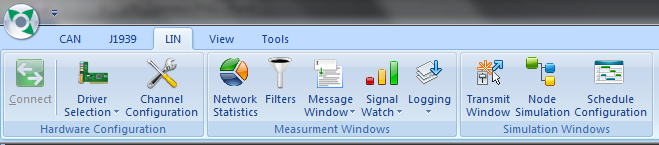
Once the Cluster & Controllers are properly configured BUSMASTER can be connected to Network using LIN->Connect. menu or the LIN Connect Tool bar Button as shown in following figure.
6. Monitoring Messages:
BUSMASTER Message Window can be used to monitor the LIN messages of LIN Network.Refer /docs/busmaster/reference/topics/lin-message-window/ section for more information.
Authoritative source: BUSMASTER DITA help source Lin_Simulation.dita, compiled into BUSMASTER.CHM with the application.