
LIN Database Editor Main Window
LIN Database Editor main window is as shown below: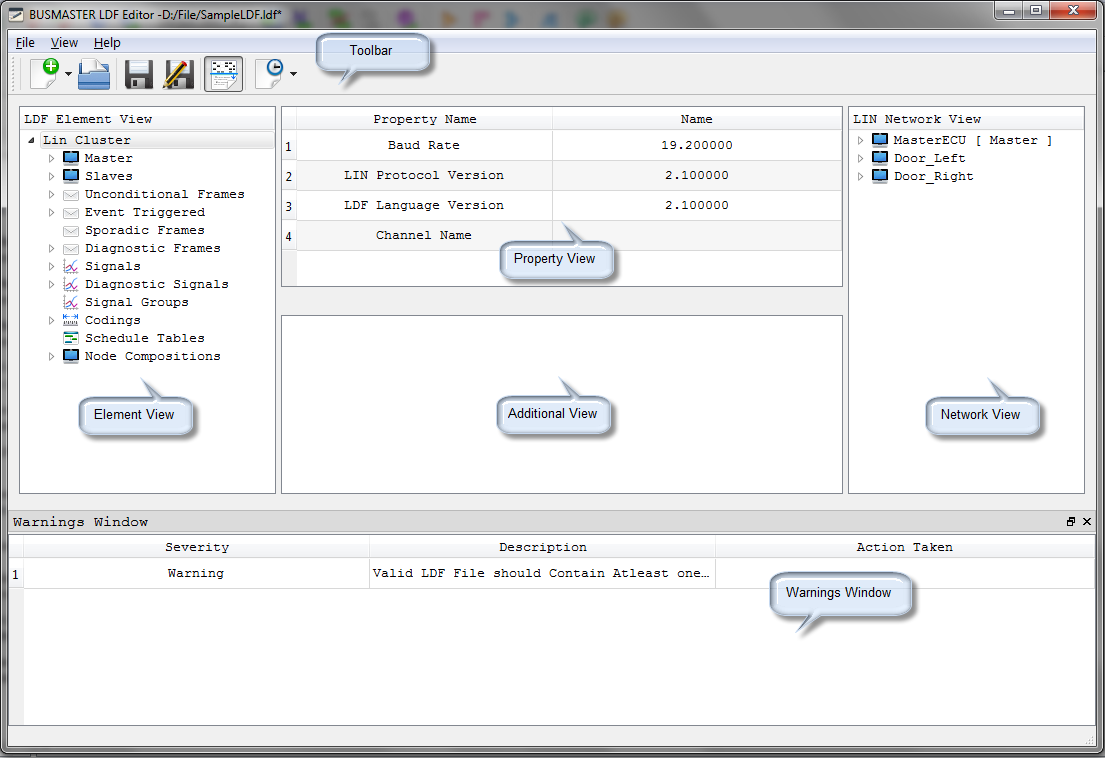
Menu bar: File Menu File->New->LIN 1.3Creates LIN 1.3 LDF file. Default elements will get created. File->New->LIN 2.0Creates LIN 2.0 LDF file. Default elements will get created. File->New->LIN 2.1Creates LIN 2.1 LDF file. Default elements will get created. File->OpenTo Open an existing LDF file of versions 1.3, 2.0 and 2.1. File->SaveTo Save the changes to the current loaded LDF file. File->Save AsTo Save changes to a new LDF file. File->Recent FilesDisplays 5 recently viewed LDF files.Click on the file to load the LDF file. View Menu View->HexSelect/DeSelect Hex to toggle between numeric modes Hex/Dec. View->Preview LDF FileOpens the current LDF file in LDF file editor. View->Warnings WindowPopulates the Warning Window, which displays the list of warnings with description and action taken if any.
Toolbar:
Toolbar can be used for creating, loading, saving LDF files and also to set the numeric mode (hex/dec).

Element View:
Element view displays the LIN Cluster elements by which user can create or edit elements.
To Create a new element, right click on the element in the element view and select the pop up menu ‘New’.
To Edit a element, right click on the element in the element view and select the pop up menu ‘Edit’
To Delete a element, right click on the element in the element view and select the pop up menu ‘Delete’. Confirmation message is displayed before deleting the element.
The following LIN Cluster elements are displayed in Element View.
Lin Cluster Settings Master Slaves Unconditional Frames Event Triggered Frames Sporadic Frames (Displayed for LDF version 2.0 and 2.1) Diagnostic Frames Signals Diagnostic Signals Signal Groups Codings Schedule Tables Node Compositions (Displayed for LDF version 2.0 and 2.1)
On selecting an element in the element view, Property view and additional view will be updated with selected element properties.
Property View:
Property view displays the properties of the element selected in the element view.Properties are populated based on the type of element selected in the element view.
**Additional View:**Additional view displays the additional properties of the element selected in the element view.Properties displayed in the additional view will vary based on the type of element selected in the element view.| Selected Element | Properties displayed | | — | — | | Node (Master/Slave) | Node Attributes List of published frames | | Frame (Unconditional, Event Triggered, Sporadic and Diagnostic frames) | Frame Attributes List of published signals | | Signals (Normal and Diagnostic Signals) | Signal Attributes List of Codings mapped to the signal | | Codings | Coding Attributes | | Schedule Table | Schedule Table Items Schedule Table attributes populated based on the type of the frame selected | | Signal Groups | Signal Group properties Signals mapped to the Signal group | | Node Compositions | List of Composite nodes mapped to the Node Configuration |**Network View:**Network view displays the Master and Slave nodes. Published, subscribed frames and signals will be displayed under respective node.On Selecting an element in the network view respective element in the element view is selected and elements properties are displayed in the Property view and Additional view.Warning Window:
On Save or Load LDF file, warning will be displayed in the Warnings window if exists any with description and action taken is specified if any action is performed to correct the warning.
Authoritative source: BUSMASTER DITA help source LIN_Editor_MainWindow.dita, compiled into BUSMASTER.CHM with the application.