
Cyclic Mode
Find more details to configure replay in cyclic mode in section Log and Replay.
Interactive Replay
Section titled “Interactive Replay”In interactive replay mode, replay window will be displayed during connect. Follow the steps given below to start replay. Select a block of messages from Message Replay Window Select CAN –> Replay –> Go or tool bar button Go (shown in figure below ) to start sending message cyclically one by one starting with first one in message block. Message replay window will be freezed. If mode is Cyclic then the selected messages from Replay window will be sent. By default only the first message will be selected. After sending all the selected messages it waits for the delay mentioned in Delay between replay cycles. Then the cycle will be repeated. Select CAN –> Replay –> Stop or Stop tool bar button (shown in figure below) to stop replay. Once the replay is stopped, Replay Message Window will be activated again.
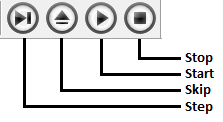
Replay window will be closed during tool disconnect.### Non-Interactive Replay
In non-interactive replay mode, replay will start during tool connect. First filters will be applied on the messages from the log file.Then replay will start with the filtered set and will continue transmitting messages continuously. If a cycle of transmission is complete, next cycle of transmission will start after cyclic delay.
To stop all non-interactive replays, disconnect the tool.
Authoritative source: BUSMASTER DITA help source cyclic_mode.dita, compiled into BUSMASTER.CHM with the application.