Using Database Associate
BUSMASTER Database Associate links imported database messages to the current network or channel context. It does not connect the hardware and it does not start the bus.
What to expect
Section titled “What to expect”- After
Associatecompletes, the dialog normally closes. - BUSMASTER generally does not show an additional success notification, green check mark, connection symbol, or channel status icon.
- Verify the association in
Transmit Window,Signal Watch, or another database-message selector. - If database messages or signals appear in the selector, the database is available to that function.
- If the list is empty, verify that the database imported successfully, the correct network or channel was selected, and that the DBC or DBF format is suitable for the current CAN or CAN FD project.
Verification procedure
Section titled “Verification procedure”- Import the DBC or DBF database. Prefer DBC for CAN FD projects.
- Run Database Associate and select the database, network, or channel that should be linked.
- After the dialog closes, open
CAN -> Transmit Windowand check whether database messages appear in theMessage Nameselector. - Alternatively, open
Signal Watchand check whether database messages and signals can be selected. - If the selector remains empty, return to database import and review the objects selected in Database Associate. Do not rely on a green check mark as confirmation.
Source: BUSMUST technical knowledge base database-associate-workflow.md. This public guide is maintained by the website content pipeline. Use the download center for current and archived software releases.
Database association
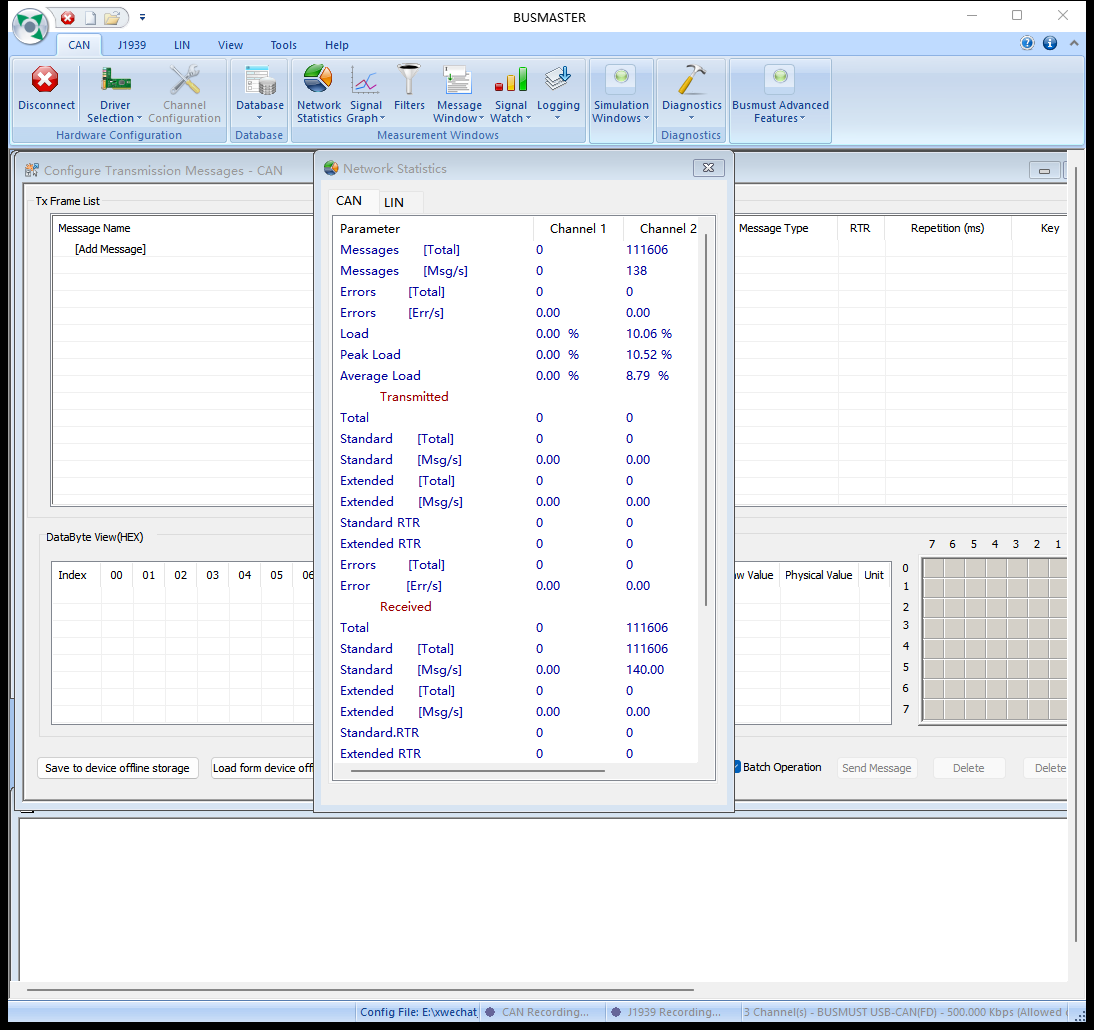
Section titled “Database association”These original screenshots come from the BUSMASTER manual or illustrated guide and show the actual workflow.