
Replay
Description:
CAN Replay feature can be used to replay the CAN log data to the network.User can configure replay file setting using CAN –> Replay –> Configure menu. This will show replay file configuration dialog as shown below.
For BUSMUST CAN FD devices, replay can be used for classic CAN and CAN FD traffic when the selected replay file format contains the required frame information. ASC and BLF are recommended when logs need to be exchanged with other CAN tools.
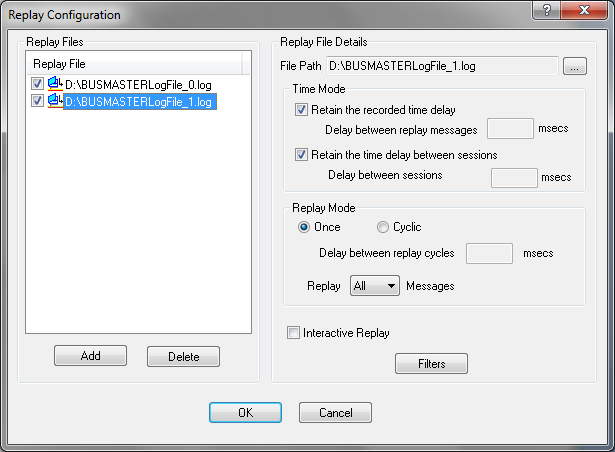
Replay Files: User can add as many as replay files in to the replay list. This list will show the replay files that are already configured. To add a new Replay file select Add button. This will show replay file selection dialog. User can select log files that are created using BUSMASTER. Once the user has selected a replay file, the file will be added to the replay list. User can change the file “… “ button in the Replay File Details section. The check box associated with replay file will make the replay file eligible to run. If the check box is not checked then that replay will not be used for replay.
**Replay Configuration:**Replaying of file can be configured using the three parameters mentioned below Time Mode Replay Delay
1. Replay Mode:
There are two modes of Replay Single Run -All the messages in the file will be replayed only once. Cyclic - The messages in the file will be replayed cyclically.
2. Time Mode:
The time delay can be set to control the delay between two consecutive messages and between two consecutive replay of the same file.
The following field controls delays Recorded time delay in the log file Time delay between messages. Time delay between cycles – Applicable for only cyclic mode.
Time delay 1 and 2 are mutually exclusive irrespective of replay mode. This time delay is the time duration between transmission of two consecutive messages. The minimum time delay (in milliseconds) is one millisecond.
On clicking the OK button a Message Replay Window will be displayed. This will contain all messages in the replay file. By default first message in the replay window will be selected. Please see section Replay a File for further details.
User can configure to replay all message logged or only transmitted message or only received message by selecting the option from Replay Message Type. It can be done during configuration of replay.
PC-side Replay and Device Offline Replay
Section titled “PC-side Replay and Device Offline Replay”The standard replay function sends messages from the PC through BUSMASTER. BUSMUST devices may also provide offline replay in BUSMUST Advanced Features. Offline replay stores the task in the device so the replay can continue without depending on the PC timing loop.
Use standard replay when you need to inspect and adjust a log interactively. Use offline replay when the device should repeat a known traffic pattern independently after the configuration has been downloaded.
Authoritative source: BUSMASTER DITA help source CAN_Replay.dita, compiled into BUSMASTER.CHM with the application.