
LIN Message Window
Introduction:
On-line LIN Network Monitoring can be done using LIN Message window.
Activation:
Use LIN->Message Window->Activate menu to Activate the Message window.This will display Message Window as shown in following figure.
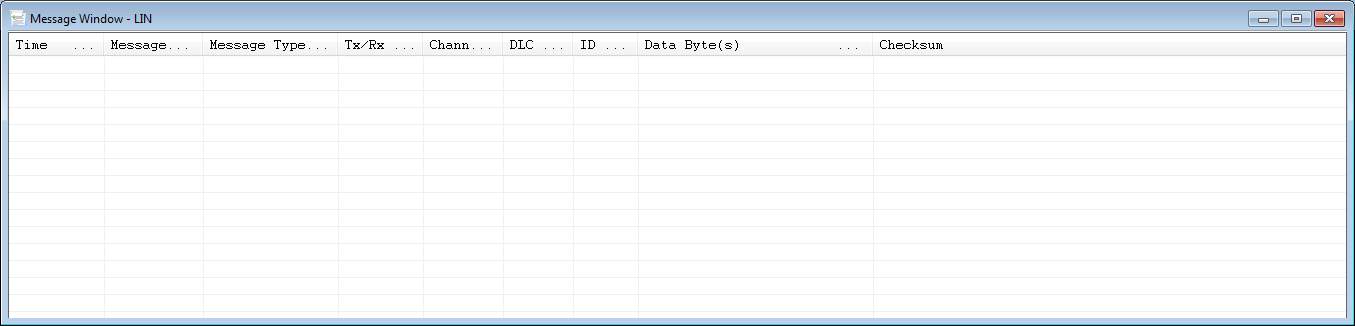
Once the BUSMASTER is connected to LIN Network the Message window will display all the Messages Transmitted on the network.Also the Message window will display the LIN Error Messages & other LIN Events.Currently the following Error or Event messages were supported.
CRC Error
Sync Error
Slave Not Responding Error
Sleep Event
Enabling Interpretation:
The Signal values of LIN Messages can be analysed using Interpretation mode.To enable the interpretation the Message window should be in overwrite mode.Use LIN->Message Window->Overwrite. menu to enable the overwrite mode.After this use LIN->Message Window->Interpret.
The below figure shows Message window when it BUSMASTER is connected to LIN Network.
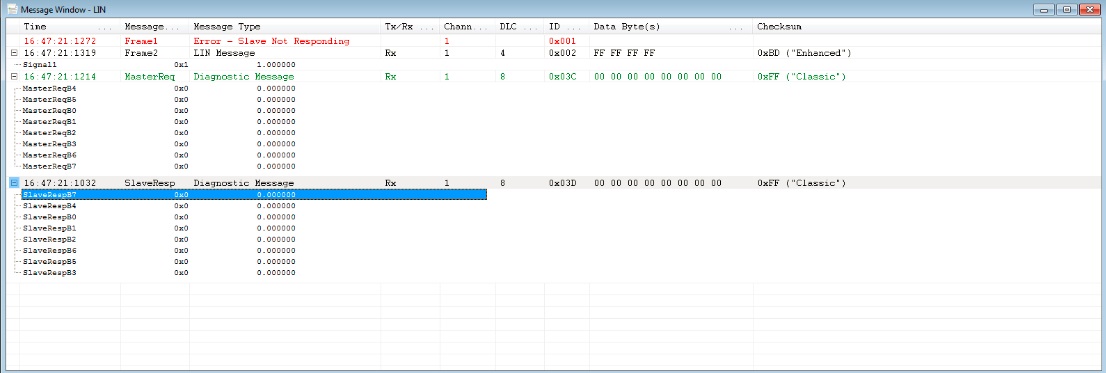
The Following section will explain the Columns Displayed in Message window with explanation.
Column Explanation Time This Will display the time at which message is received\Sent on LIN BUS.The time mode can be changed to Absolute\System\Relative Mode using LIN->Message Window->Time Mode menu Tx/Rx This Menu will display weather the message is received or sent from BUSMASTER.Tx Represents the message is sent From BUSMASTER.Rx Represent Message is received in BUSMASTER Message Displays the Name of message if available in LDF file Message Type This Column will tell the Frame type.The following are the Frame types displayed in this column. LIN Frame Error - Slave No Response Error - CRC Error Event - Sleep Event - Wakeup ID Displays the LIN Message ID. Checksum This column will give the Checksum value and Checksum type. Channel This column will display on which channel ( A, B or AB ) the message was received. DLC This column will display the Length of Frame in Bytes. Data Byte (s) This column will display the Data Bytes received\Transmitted of the Frame
Message Interpretation window:
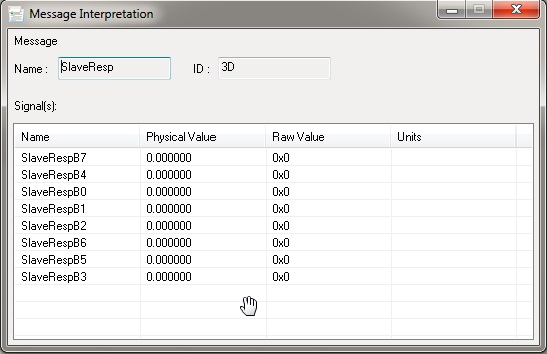
It is possible to Monitor the interpretation of a single message in separate window called **Message Interpretation.**Double click on any message in Message window to Activate the Message Interpretation window.An Instance of this window is shown in following figure.
Authoritative source: BUSMASTER DITA help source LIN_message_window.dita, compiled into BUSMASTER.CHM with the application.