
Logging
Description:BUSMASTER CAN Logging feature can be used to log the CAN network into a file for offline analysis.User can configure log file setting using
Section titled “Description:BUSMASTER CAN Logging feature can be used to log the CAN network into a file for offline analysis.User can configure log file setting using”CAN –> Logging –> Configure
menu. This will show log file configuration dialog as shown below.For BUSMUST CAN FD devices, logging can be used with classic CAN and CAN FD traffic. The log should preserve enough frame information to identify standard or extended identifiers, direction, channel, payload length, and CAN FD attributes where the selected file format supports them.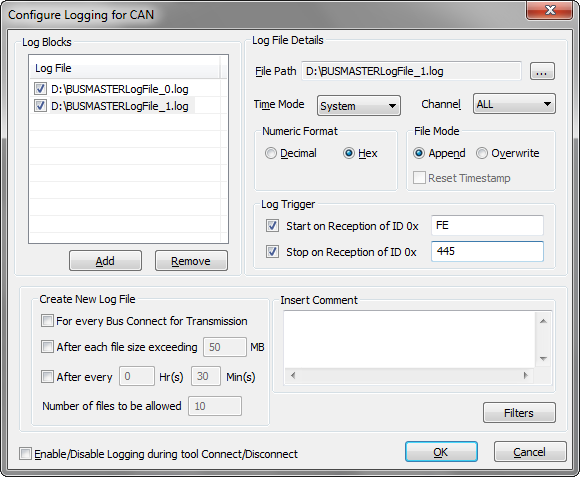 - Log Blocks: User can add as many as log files in to the list of Log Files. This list will show the log files that are already configured. To add a new Log file select Add button. This will add a log file with default file name. User can change the file name using “…” button in the Log File Details section. The check box associated with the log file will make the log file eligible for logging. If the check box is not checked logging will not happen to that particular file.- Log File Details: This section will show the configuration details of the selected log file. This will give info of log file path, time mode, numeric mode, file mode, log triggers and log filter.- Log File Path: The file path text box will give the selected log file path. To change the path select “…” button. This will show file selection dialog. On selection of a log file, the file path text box will be updated with selected file path.
-
Log File Size: Log file size is fixed to a limit of 50 MB. This limit is set as most of the editors will take lot of time to open if the file size is large.- **Time Mode:**Logging of messages can be done in three different time modes. System time, Absolute time and Relative time mode. In system time mode time stamping of message is done using real time clock of the system. In absolute time mode the time stamping is done with respect the to the absolute timer that will be stated during connect. In relative time mode the time stamping of a message is with respect to previously received message.Reset Time stamp for every enable logging is provided. If this option is selected then the absolute time will be reset whenever the logging is enabled.
-
**Numeric Mode:**This tells the numeric format of log file entries. It has two options Hex and Decimal. Message ID and data bytes of a CAN message will use this as a base while format for logging.
-
**File Mode:**In Append file mode, log sessions will be appended at the end of the file. Each logging session will have its own session header and footer. In Overwrite file mode the file will be overwritten for the first session. For consecutive sessions the file name will be suffixed with an incrementing number and each session will be logged in new files. The log file name will be incremented every-time when you stop the logging process.If already log files are created in the previous session and if a new session is started, then the log files created already will be overwritten in both overwrite and append mode. In this case, the successive files already created in the previous session will contain old session data.
-
Create New Log File:
-
For Every Bus Connect for Transmission:New Log file can be created for every Bus Connect. The new log file will have a file name. Eg: BusmasterLogFile_CAN_Mn.log where ‘n’ is the count, and ‘M’ indicates logging is ‘Measurement’ based. After each file size exceeding: New Log file can be created with log file exceeding certain file size. The new log file will have a file name. Eg: BusmasterLogFile_CAN_Sn.log where ‘n’ is the count, and ‘S’ indicates logging is ‘Size’ based. After specified time: New Log file can be created for certain interval of time. The new log file will have a file name. Eg: BusmasterLogFile_CAN_Tn.log where ‘n’ is the count, and ‘T’ indicates logging is ‘Time’ based.
-
Maximum number of files: When any create-new-file rule is enabled, set the segment limit from 1 through 99999. The value is validated before the logging configuration can be accepted.
-
At file limit: Choose Overwrite to continue by reusing the configured segment-name range, or Stop logging to stop only that logging block when its limit is reached. A blue inline hint reports an invalid file count or a block that stopped at its limit.
-
Comment:User defined Comments can be inserted to the header of the log file.
-
Filters: Filters can be added for logging.### PC-side Logging and Device Offline Logging
The standard logging function records messages while BUSMASTER is connected and running on the PC. BUSMUST devices may also provide offline logging features that are configured from BUSMUST Advanced Features. Offline logging is a device-side function and is useful when traffic must be captured without keeping the PC application online.
When choosing a log format for exchange with other tools, use ASC or BLF when interoperability is required. Use BUSMASTER LOG when the file is mainly intended for BUSMASTER review and replay.Activating Logging:
Logging can be activated in two ways.
**Auto Start:**Enable the check box Enable/Disable Logging on Tool Connect/Disconnect in Log Configuration window to activate\deactivate logging automatically when the tool is connected. **Manual Start:**use CAN->Logging->Activate menu to start\stop Logging Manually
Logging Indication:
Recording or logging is indicated in the status bar for both CAN and J1939. When the logging is enabled and data is logged in to the file, an blinking icon will be shown in the status bar till the logging is stopped.
Authoritative source: BUSMASTER DITA help source CAN_Log.dita, compiled into BUSMASTER.CHM with the application.