
Meet BMCLI: From Installation to Your First Bus Analysis
In automotive electronics development, a segment of bus data is often only the beginning. Next come finding messages, interpreting signals, plotting trends, or turning a diagnostic operation into a test tool that colleagues can use.
BMCLI is built for this work. BUSMUST’s command-line tool connects to BUSMUST analyzers for CAN, CAN FD, and LIN transmission and reception, with database parsing, diagnostics, calibration, node simulation, and recording/replay. Engineers can call it directly or give it to mainstream AI coding assistants such as Claude Code and Codex. You can describe requirements, provide materials, and refine results entirely in natural language, without writing code or scripts yourself. AI generates the application, and BMCLI connects it to real devices.
How Does BMCLI Differ from BUSMASTER and BMAPI?
Section titled “How Does BMCLI Differ from BUSMASTER and BMAPI?”If you have used BUSMASTER, think of these as three ways to access the bus:
| Tool | Main interaction | Suitable work |
|---|---|---|
| BUSMASTER | Configure and operate through a graphical interface | Everyday message observation, signal debugging, and manual analysis |
| BMAPI SDK | Call APIs from a program | Applications requiring direct hardware control |
| BMCLI | Call through commands, scripts, or Web APIs | Automated testing, AI-assisted development, and rapid engineering tools |
AI understands requirements, organizes steps, and writes the interface; BMCLI handles hardware and protocols. For example, when you ask for a web page showing speed and gear, AI can call BMCLI to receive messages, load a DBC, obtain engineering values, and generate the page.
The conversation can therefore start with the result you want, rather than the first function to call. An AI coding assistant can run BMCLI locally or on an authorized remote engineering host. What matters is that the host running BMCLI can access the environment containing the devices.
What Engineering Foundation Does BMCLI Give AI?
Section titled “What Engineering Foundation Does BMCLI Give AI?”Imagine a recording/replay page for a bench. The buttons are straightforward; the time-consuming work lies behind them: connecting devices, reading messages, preserving timestamps, handling ASC/BLF, scheduling replay, and managing stop, disconnection, and resource release.
BMCLI already provides dedicated interfaces for this work. AI can call recording and replay services and build buttons, progress displays, and project reports around them. You describe saving records by operating scenario and selecting a segment to replay, rather than log formats or USB receive/transmit loops.
This division also suits larger systems: BMCLI supplies bus abstractions and protocol semantics, while AI-generated applications handle interaction, business workflows, persistent data, and integration. The accompanying skill documents environment preparation, interface discovery, and common engineering practices, giving AI an established method. Any model supported by your coding assistant can work with BMCLI; choose according to task complexity. Whichever model you use, validate results with real inputs and execution evidence. BMCLI already implements the communication protocols, so the model need not start from scratch.
Main BMCLI Commands and Their Uses
Section titled “Main BMCLI Commands and Their Uses”BMCLI commands generally consist of a category, operation, and parameters. For example:
# Capture messages on the selected channel; --decode also outputs database-decoded engineering values.bmcli message recv --channel=vehicle-can --duration=10 --format=jsonlHere, message selects message commands and recv means receive; the remaining parameters select the channel, duration, and output format. This command receives for 10 seconds on the prepared vehicle-can channel and writes JSONL records line by line. AI can read these records directly for statistics, plots, or reports.
Reception, transmission, and saving logs can all be performed directly with commands. The following are independent examples by function. Configure and open channels before bus operations, load resources before database operations, and establish protocol connections before diagnostics or calibration. Replace logical names, files, and variables with your project values; consult online help for parameter details.
| Capability | Command keywords | Representative call |
|---|---|---|
| Channel discovery and configuration | channel |
bmcli channel enumerate --format=json: list available device channels |
| Message reception | message recv |
bmcli message recv --channel=vehicle-can --duration=10 --format=jsonl: capture a segment of bus traffic |
| Message transmission | message send |
bmcli message send --channel=vehicle-can --id=0x100 --data="01 02 03 04 05 06 07 08" --count=1 --format=json: send one frame with specified data |
| Bus statistics | stat |
bmcli stat show --channel=vehicle-can --format=json: inspect statistics already started |
| DBC signal decoding | dbc |
bmcli dbc signal list --message=VehicleStatus --database=vehicle --format=json: inspect signal definitions in a message |
| Recording | logging |
bmcli logging start --channel=vehicle-can --path=logs/run.blf --log-format=blf --duration=10 --format=json: save a 10-second BLF log |
| Replay | replay |
bmcli replay start --channel=vehicle-can --file=logs/run.blf --format=json: transmit an existing recording onto the bench |
| Periodic transmission tasks | txtask |
bmcli txtask list --channel=vehicle-can --format=json: inspect transmission tasks on the channel |
| Message routing | route |
bmcli route list --channel=vehicle-can --format=json: inspect message routing rules on the channel |
| UDS diagnostics and flashing | isotp, uds |
bmcli uds did read 0xF190 --format=json: read a DID through a configured diagnostic connection |
| LIN master/slave communication | lin, ldf |
bmcli ldf schedule show NormalTable --database=body-lin --format=json: inspect an LDF schedule |
| XCP measurement and calibration | a2l, xcp |
bmcli xcp measurement read EngineSpeed --database=ecu --format=json: read a measurement by A2L variable name |
| CANopen node services | canopen |
bmcli canopen object list --database=node --format=json: inspect the EDS object dictionary |
| Modbus industrial module integration | modbus |
bmcli modbus resource list --database=plant --format=json: inspect registered module resources |
| Node simulation and fault rules | simulation |
bmcli simulation validate --file=node.json --format=json: check node configuration offline |
| Unified signal gateway | gateway |
bmcli gateway validate --file=bridge.bmgw --format=json: check a signal-mapping project offline |
| Web data and application interfaces | web |
bmcli web start --listen=127.0.0.1:18080: start a local web service |
Runtime Environment and Project Management
Section titled “Runtime Environment and Project Management”These interfaces prepare the environment and manage services; consider them separately from the bus functions above. Bench stores the mapping between a project and local devices, daemon manages persistent tasks, and the AI interface installs and checks skill instructions for coding assistants.
| Runtime foundation | Command keyword | Representative call |
|---|---|---|
| Version information | version |
bmcli version --format=json |
| Environment checks | doctor |
bmcli doctor --format=json |
| Project bench configuration | bench |
bmcli bench show --format=json |
| Background service | daemon |
bmcli daemon status --format=json |
| AI skill configuration | ai |
bmcli ai status --format=json |
For example, recording and replay already handle file formats and bus timing; AI only needs to organize the interface for saving scenarios and repeating experiments. Diagnostic and calibration interfaces let applications use DIDs or measurement variables directly without reimplementing protocols. Transmission, replay, and diagnostic calls generate bus traffic, so use them on a test bench with an agreed operating scope.
Commands perform individual operations; the skill helps AI organize them into a complete solution. One acquisition result can feed a display, logs, and test decisions; node simulation can provide regression inputs. For parameter details, consult BMCLI Online Help or ask AI to query local Help. Later tutorials show how these interfaces combine into project tools.
From Analysis Reports to Dedicated Project Tools
Section titled “From Analysis Reports to Dedicated Project Tools”The illustration below previews the applications in tutorials 2 through 13. Browse the results that interest you, then use the examples below to see how they fit everyday work.
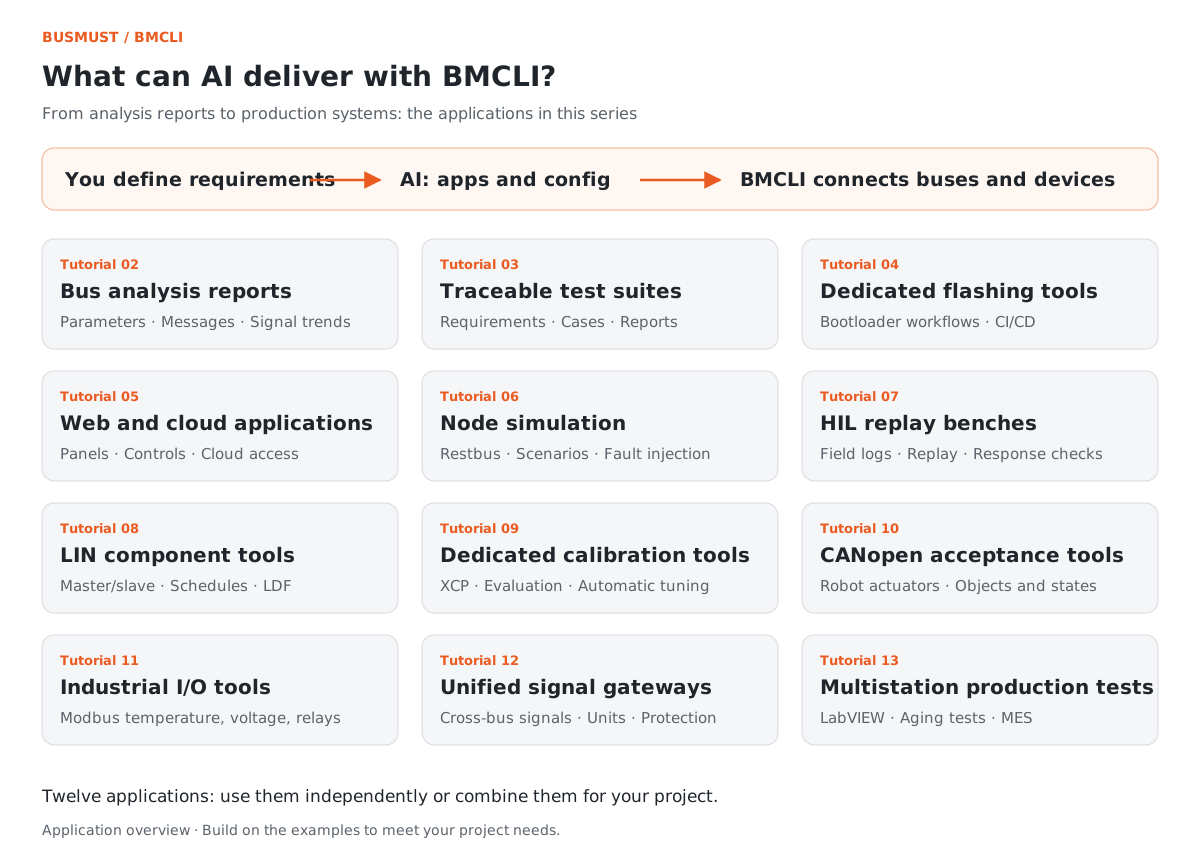
Figure 1-1. Results from the next twelve scenario tutorials; these applications can be combined and expanded for your project.
Understand bus data. A DBC and a capture can produce a message inventory, signal values with units, and trends. Hexadecimal data becomes “speed 72.5 km/h, gear D.”
Turn project materials into tests. IDs, periods, and ranges in a communication matrix, together with DIDs in a diagnostic table, can become cases with explicit criteria. The report gives results and identifies the requirement behind each check.
Build a bench engineering panel. Put live values, curves, message lists, recording, and transmission on one page. Begin with local integration, then add business services and an HTTPS reverse proxy to create a remote engineering application for multiple users.
Stand in for missing nodes. Before an ECU arrives, simulate its periodic messages and signal changes. During testing, add dropped or repeated frames to observe the receiver’s handling.
Organize diagnostics and flashing. Connect session, download, and verification stages, display progress, and locate failures by stage. Project configuration supplies specific addresses, algorithms, and procedures.
These examples share one idea: describe the objective in engineering terms and let AI combine BMCLI’s existing capabilities. As requirements grow, a report can become a tool, and that tool can join a larger system.
Download and Install
Section titled “Download and Install”BMCLI supports Windows and Linux. Windows 10/11 users can run this in PowerShell:
# Download and run the Windows installation script.irm https://download.busmust.com/bmcli/install.ps1 | iexLinux users can run:
# Download and run the Linux installation script.curl -fsSL https://download.busmust.com/bmcli/install.sh | shFor offline installation on a field computer, fully extract the official package, then run its installation script. For example, on Windows:
# Install from a prepared offline package.$packagePath = Read-Host "Enter the full path to the downloaded Windows ZIP package"powershell -ExecutionPolicy Bypass -File .\share\bmcli\packaging\install.ps1 ` -PackagePath $packagePathAfter installation, reopen your terminal and run these checks:
# Confirm the current software version.bmcli version --format=json# Check installation of the AI skill instructions.bmcli ai status --format=json# Check that the runtime environment and dependencies are ready.bmcli doctor --format=json# List available devices and stable channel identifiers.bmcli channel enumerate --format=jsonThese checks confirm the software version, AI skill configuration, runtime environment, and device channels. Windows requires the accompanying BUSMUST device driver; on Linux, configure USB access through udev as described in the package.
If ai status reports that the skill is not installed, run bmcli ai setup --target=all and reopen the AI session. This skill provides BMCLI usage instructions to AI, helping it find commands and interpret responses.
Input for AI: Make the First Connection
Section titled “Input for AI: Make the First Connection”With an AI coding assistant that can execute local commands, such as Codex or Claude Code, you can begin your first task:
I have installed BMCLI and connected a BUSMUST analyzer. Check the software, driver, AI skill, and available channels, then select a receive channel using the existing Bench configuration. Begin with a listen-only check: confirm wiring and bus parameters, listen for 10 seconds, and prepare a short report covering discovered devices, whether messages arrived, and a suitable next analysis. List any information you need from me.
Bench is the bench configuration recording which logical network connects to which device port and with what parameters. If the project already has one, AI can reuse familiar network names. For a first connection, provide serial numbers, ports, and wiring details so AI can identify the bench accurately.
The background daemon manages BMCLI’s continuous reception and background tasks. AI first checks for a reusable service, then opens channels using confirmed parameters. On a shared team bench, agreed equipment time slots make these checks smoother.
Finished Result: Your First Connection Report
Section titled “Finished Result: Your First Connection Report”A useful check report can be short. For example, channel information from this series’ demonstration bench can be summarized as:
| Check | Demonstration bench result |
|---|---|
| Receive device | BM-USB-XL4, serial number 10357 |
| CAN port | 10357/0, supporting CAN and CAN FD |
| Communication configuration | Classic CAN, 500 kbit/s |
| Received message | VehicleStatus, CAN ID 0x100 |
| Material for further analysis | VehicleStatus demonstration DBC |
Use current enumeration results for device and port counts. If no data arrives, the report can suggest checking peer power, sleep state, or bus parameters, giving troubleshooting a clear starting point.
On a dual-analyzer bench disconnected from a vehicle, you can also verify an active link: send four frames and confirm receipt of all four. The series’ sample report shows this result. Request this as a separate test after the listen-only check.
Implementation Explained: How the Connection Report Is Produced
Section titled “Implementation Explained: How the Connection Report Is Produced”You can run the installation checks yourself; AI organizes the calls and results for this report. It checks the environment with version, ai status, and doctor, identifies channels with channel enumerate, and prepares listen-only acquisition using Bench. BMCLI returns device information and receive records; AI turns them into report tables and conclusions. Active-link verification is a separate task performed only when you explicitly request it.
Explore Further: Build on the First Connection
Section titled “Explore Further: Build on the First Connection”Save a Project Bench Configuration
Section titled “Save a Project Bench Configuration”After a successful first connection, ask AI to save device ports, bitrates, and purposes in the project Bench and give networks recognizable names, such as “Powertrain CAN.” Analysis scripts and pages can then use logical names; replacing a device only requires updating the local binding. Add power and wiring notes so colleagues can start from the same configuration and spend less time reconfirming ports.
Turn the First Recording into a Signal Report
Section titled “Turn the First Recording into a Signal Report”If you have a DBC, ask AI to decode the recording using that database and select signals relevant to the current operating condition. BMCLI’s database and decoding interfaces supply the data; AI organizes units, ranges, and curves. This moves from receiving data to understanding it. The next tutorial covers that step in full.
Download this tutorial’s companion examples (ZIP)