Logging, import, and replay formats
This guide explains online recording, offline inspection, and online replay of ASC, BLF, and LOG message files in the BUSMUST edition of BUSMASTER. It also defines the device-side logging and replay workflow for X2R and X4R interfaces.
The full illustrated Chinese article is available from the BUSMUST WeChat account: ASC, BLF, and LOG recording and replay.
Logging, Import, Replay, and offline operation
Section titled “Logging, Import, Replay, and offline operation”Loggingsaves messages currently transmitted or received by BUSMASTER.Importopens an existing log in Message Window for inspection; it does not transmit anything.Replaytransmits messages from a log onto a CAN, CAN FD, or LIN network.Offline Logging / Offline Replayruns on a supported device without keeping a PC connected.
Common formats include:
ASC: text format suitable for interchange and manual inspection.BLF: compact binary format suitable for high bus load or long recordings.LOG: native BUSMASTER log format.BBD: BUSMASTER-related data used by specific import or device-side replay workflows.
Online logging
Section titled “Online logging”Confirm that Message Window shows traffic before recording. Incorrect channel mapping, bitrate, mode, termination, or wiring will usually produce an empty file.
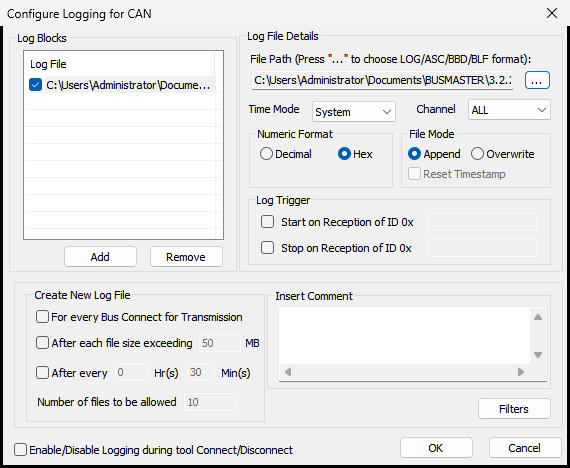
- Open Logging configuration and create or select a logging task.
- Select the output path and ASC, BLF, or LOG format.
- Select a channel or
ALL, then choose Tx, Rx, or both directions. - Set time and number formats and append or overwrite behavior.
- For long recordings, split files automatically by time or size.
- Consider starting and stopping recording automatically with Connect and Disconnect.
- Stop recording normally before closing BUSMASTER or disconnecting the device so file buffers are written completely.
Prefer BLF for a high-load network or long recording. Use system time to align with external test records, or relative/elapsed time to analyze message intervals.
Import a log for inspection
Section titled “Import a log for inspection”Import opens a file without transmitting it. Select View -> Import or drag a supported log into Message Window.
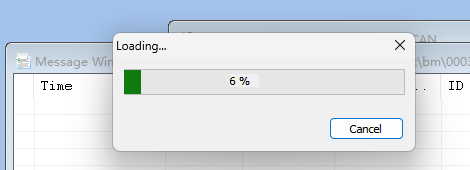
Disconnect from the bus before importing; the command may be unavailable while BUSMASTER is connected. Large files display progress and should be allowed to finish before another import is started.
After import, Overwrite/Append, time modes, software filters, DBC Interpret, Signal Watch, and Signal Graph remain available for analysis.
Online replay
Section titled “Online replay”Replay transmits real traffic. Before attaching to an ECU or vehicle network, review the log, destination channel, arbitration and data bitrates, termination, and safety impact.
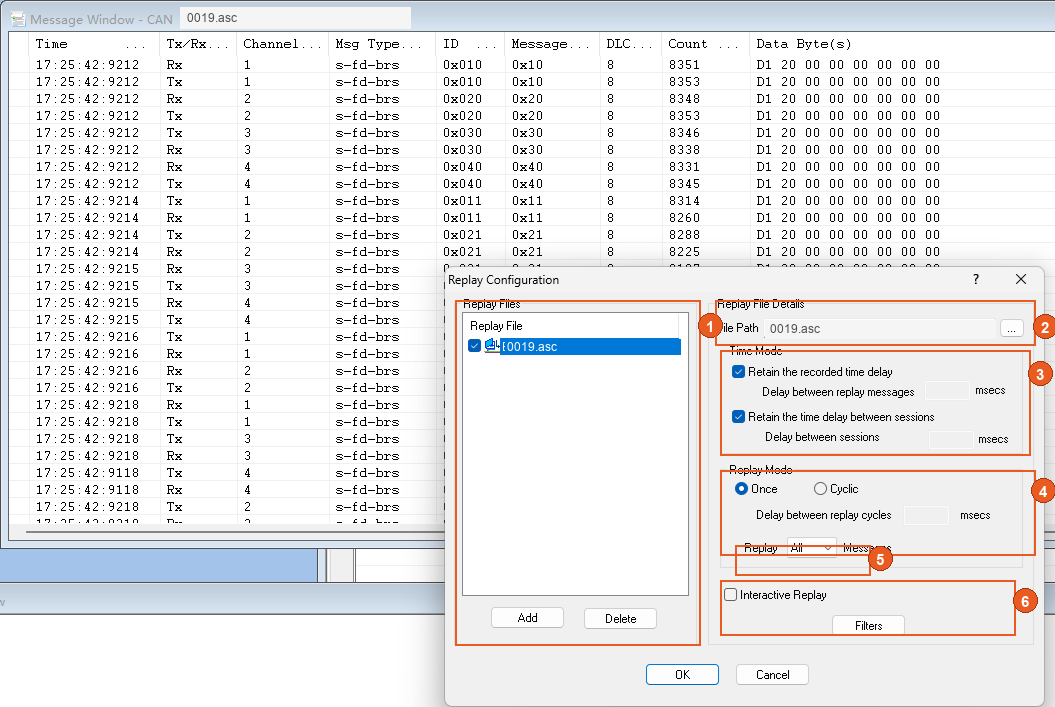
First transmit a simple frame manually to verify the output channel. Then configure the replay file, one-shot or cyclic behavior, and original or fixed timing.
During replay, verify Tx traffic in Message Window, Tx counts in Network Statistics, and any response from the other node. If the other node receives nothing, confirm that classic CAN, CAN FD, and BRS attributes in the log match the current network.
X2R and X4R offline logging
Section titled “X2R and X4R offline logging”X2R and X4R models include a TF card and can record channel traffic without a PC.
- Configure bitrate, mode, and termination, then save the channel settings to device offline storage.
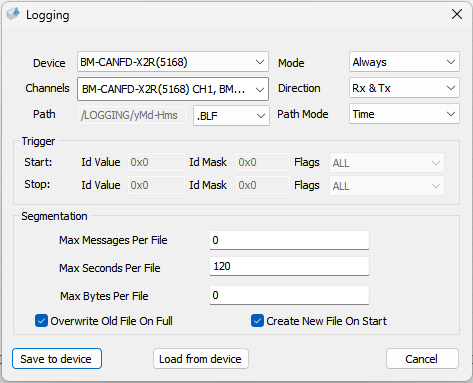
- Open Offline Logging and select the device, channels, direction, and continuous or triggered operation.
- For long or high-load recordings, select BLF and configure file splitting by time or size.
- Select
Save to deviceto store the task. - Disconnect and allow the device to load its offline configuration, or power-cycle it as required.
- Confirm that bus traffic exists and then check the TF card
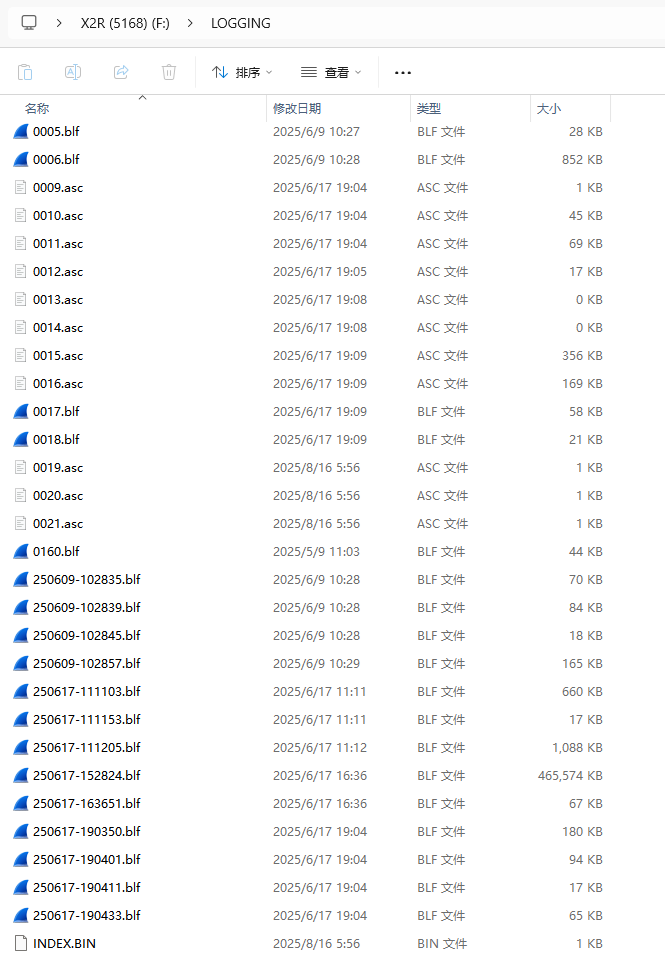
LOGGINGdirectory for new files.
Both channel configuration and the Offline Logging task must be saved to the device.
X2R and X4R offline replay
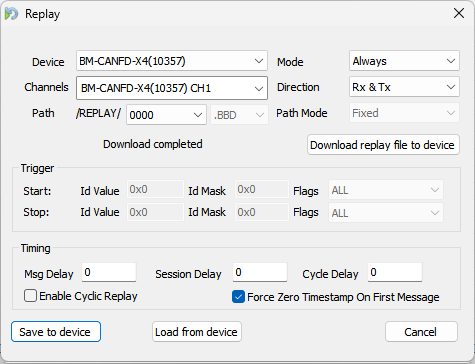
Section titled “X2R and X4R offline replay”X2R and X4R can read files from the TF card REPLAY directory. Save the channel configuration, prepare the replay file, configure output channels, delays, loop or trigger conditions, and select Save to device.
Loopback may be useful when repeatedly transmitting without another node during a controlled test. Use Normal mode for communication and acknowledgement on a real network. The correct mode depends on the test design.
Standard third-generation X1, X2, X4, and XL models do not include a TF card and cannot perform the same large-file TF-card workflow. Some models can store a shorter sequence internally for lightweight offline replay.
TF card directories and drive mounting
Section titled “TF card directories and drive mounting”When the device is idle, the TF card can normally be accessed as a drive with directories such as:
CONFIG: offline configuration.LOGGING: offline recording files.REPLAY: offline replay files.
The drive may remain unmounted while the device is actively logging or replaying so the PC and device do not write the card at the same time.
Troubleshooting
Section titled “Troubleshooting”An online recording is empty
Section titled “An online recording is empty”Verify that Message Window receives traffic, the task is enabled, channel and direction are correct, the destination is writable, and recording starts with Connect when that option is used.
A file cannot be imported
Section titled “A file cannot be imported”Disconnect first. Confirm that the format is supported and the file is intact. Allow a large import to finish; use a smaller file to verify the workflow if needed.
Replay produces no response
Section titled “Replay produces no response”Confirm that BUSMASTER is connected and that the channel, bitrate, termination, and frame type are correct. Check for Tx messages, increasing Tx statistics, and BusOff status.
X2R/X4R offline logging creates no file
Section titled “X2R/X4R offline logging creates no file”Confirm that the model has a TF card, both channel settings and the logging task were saved, the card is writable and has space, and the field network actually carries traffic. Use the product manual and traffic status rather than relying on an indicator color alone.
X2R/X4R offline replay produces no output
Section titled “X2R/X4R offline replay produces no output”Confirm that the file is in REPLAY, its name and format satisfy the configured task, the task and channel parameters are saved, and loop, trigger, and mode settings are correct.
Further reading
Section titled “Further reading”- BUSMUST WeChat article: ASC, BLF, and LOG recording and replay
Source: BUSMUST technical knowledge base log-replay-format-matrix.md. This public guide is maintained by the website content pipeline. Use the download center for current and archived software releases.
Logging, import, and replay screens
Section titled “Logging, import, and replay screens”These original screenshots come from the BUSMASTER manual or illustrated guide and show the actual workflow.