
Logging
Logging
Section titled “Logging”User can configure log file setting using
LIN –> Logging –> Configure
menu. This will show log file configuration dialog as shown below.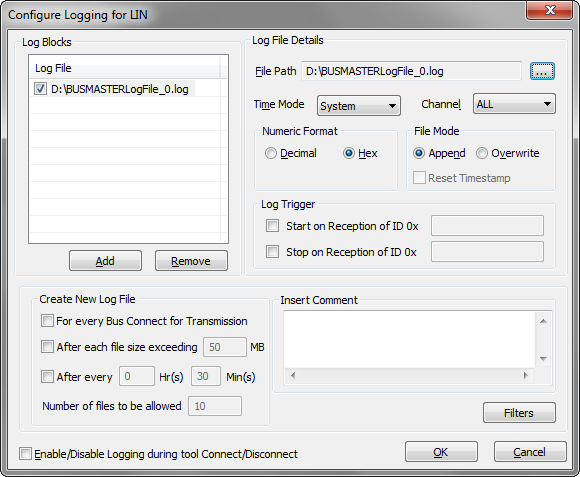
Log Files
Section titled “Log Files”User can add as many as log files in to the list of Log Files. This list will show the log files that are already configured. To add a new Log file select Add button. This will add a log file with default file name. User can change the file name using “…” button in the Log File Details section. The check box associated with the log file will make the log file eligible for logging. If the check box is not checked logging will not happen to that particular file.### Log File Details
Log file details will give configuration of the selected log file. This will give info of log file path, time mode, numeric mode, file mode, log triggers.### Log File Path
The file path text box will give the selected log file path. To change the path select “…” button. This will show file selection dialog. On selection of a log file, the file path text box will be updated with selected file path.### Log File Size
Log file size is fixed to a limit of 50 MB. This limit is set as most of the editors will take lot of time to open if the file size is large.### Time Mode
Logging of messages can be done in three different time modes. System time, Absolute time and Relative time mode. In system time mode time stamping of message is done using real time clock of the system. In absolute time mode the time stamping is done with respect the to the absolute timer that will be stated during connect. In relative time mode the time stamping of a message is with respect to previously received message.
Reset Timestamp for every enable logging is provided. If this option is selected then the absolute time will be reset whenever the logging is enabled.### Numeric Mode
This tells the numeric format of log file entries. It has two options Hex and Decimal. Message ID and data bytes of a LIN message will use this as a base while format for logging.### File Mode
In Append file mode, log sessions will be appended at the end of the file. Each logging session will have its own session header and footer. In Overwrite file mode the file will be overwritten for the first session. For consecutive sessions the file name will be suffixed with an incrementing number and each session will be logged in new files. The log file name will be incremented every-time when you stop the logging process.
If already log files are created in the previous session and if a new session is started, then the log files created already will be overwritten in both overwrite and append mode. In this case, the successive files already created in the previous session will contain old session data.### Logging Indication
Recording or logging is indicated in the status bar for LIN. When the logging is enabled and data is logged in to the file, an icon will be shown in the status bar with glowing on and glowing off continuously till the logging is stopped. When the logging is stopped then icon will be disabled.### Example
If the log file name is abc.log for the first time, then for the next time the log file name will be abc0.log.
Similarly, if the log file name is abcn.log for the first time, where n – is any number, then for the next time the log file name will be abcm.log, where m = n + 1.### Message Log
LIN messages can be logged to a file for analysis. Log file name shall be selected as described in section Logging.
To start message logging select Log Start or press the Tool Bar Button shown in the figure below. The tool bar is toggle button. Clicking on the button or selecting the menu again will stop logging. Once the logging has started, the messages received and transmitted will be logged in to the file with time of message reception.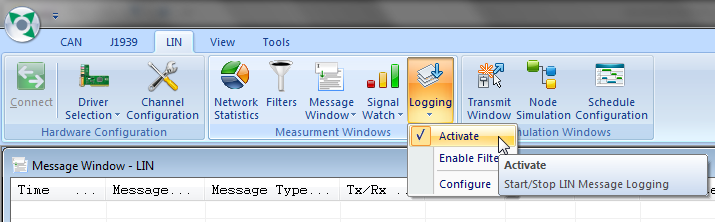
- Logging will fail if the log file is not present in the specified location.
- Logging status is stored in configuration file and logging will be started automatically during application startup if it is enabled and saved in the configuration file.
Authoritative source: BUSMASTER DITA help source log_LIN.dita, compiled into BUSMASTER.CHM with the application.