
Web-Based Engineering Tools: From Panels to Cloud Applications
With BMCLI’s bus services and AI’s web development capabilities, a product-specific tool can grow from an engineering panel into a complete desktop or web application. Using a vehicle instrument bench, this article starts with a runnable digital cockpit, explains bus integration, and explores desktop and cloud delivery options.
During controller integration, one bench may have separate windows for signals, raw messages, recording, and transmission to change conditions. Each new colleague needs another explanation of the buttons. Bringing common operations into a product-specific panel lets colleagues follow a familiar experimental workflow.
Suppose we are commissioning a vehicle instrument cluster. A computer connects to bench CAN through a BUSMUST analyzer; the project supplies a DBC and permitted control messages. Developers want speed, gear, anomalous frames, scenario recording, and predefined test actions on one page. Test colleagues want to install a package and launch it with a double-click. When equipment stays in the laboratory, remote engineers should also be able to view the same conditions and experiment records in a browser.
BMCLI supplies acquisition, decoding, message operations, and recording/replay; AI generates the application from your natural-language requirements. A few displayed signals call for a panel; multiple pages, menus, toolbars, and complete workflows call for a dedicated engineering application. At either scale, BMCLI handles hardware communication and bus parsing, leaving the application to organize product-specific pages and operations.
Two source examples are included: a digital cockpit simulation page you can open directly, and a basic read-only page connected to BMCLI. Try the interface first, then understand the data connection. Later sections describe desktop packages and cloud systems as project-dependent delivery choices.
Input for AI: Build a Product-Specific Engineering Application
Section titled “Input for AI: Build a Product-Specific Engineering Application”Prepare the DBC, Bench, and test-message allowlist, then give AI this task. It describes a complete application that can build on the bundled examples.
Build a multipage web engineering application for a vehicle instrument bench, using BMCLI as the bus backend. The project directory contains vehicle-demo.dbc, Bench, and a list of permitted test messages. Provide device connection, live monitoring, message operations, and experiment records pages, with navigation and common toolbars.
Use a dark digital cockpit design for the live page: large numeric speed with an arc scale, a read-only P/R/N/D gear indicator, a rotatable virtual steering wheel, and separate left/right turn arrows. Confirm signal names, units, and enumerations from the project DBC and list any missing definitions. These components display state only and send no vehicle control commands.
Show a speed curve for the last 60 seconds below, with time ticks, units, and hover readings. Simulation mode generates about 1200 samples at 20 Hz and clearly labels simulated data. Real mode uses actual samples and timestamps from history or subscription interfaces, separating page redraw from sampling. Show a stale-data notice when updates stop and break the curve across missing data.
The message page supports raw-frame filtering. The operation area provides record, stop, segment replay, and transmission of allowlisted messages. Show targets and parameters before execution, then update the UI using BMCLI’s actual returned state. Start read-only; enable operations after I confirm them on the isolated bench.
First deliver a version whose assets load offline in a local browser, separating pages from data access. Check page operations, stale-data notices, errors, and recovery yourself. Deliver source, startup instructions, and check results for my acceptance.
The bench also needs a controller or simulated node to transmit speed, gear, and related messages; the instrument cluster and analyzer receive them. AI connects BMCLI-decoded signals to the page. See the runnable examples and startup guide for preparation.
Finished Result: One Application Connecting Bench Operations
Section titled “Finished Result: One Application Connecting Bench Operations”A useful tool follows the experiment workflow: confirm connections after opening a project, observe speed and gear live, switch to raw messages to locate an anomaly, and save records with operation markers. To reproduce a problem, select a segment from the records page, confirm the target, and start bench replay.
Starting with the cockpit overview, expand the application around these functions:
| Area | Panel contents | Integration use |
|---|---|---|
| Operating-condition overview | Speedometer, virtual steering wheel, gear indicator, turn indicators, and trend curve | Read vehicle state directly, with less mental translation from field names |
| Message observation | IDs, timestamps, payloads, filters, and anomaly location | Trace signal behavior back to raw data |
| Bench operations | Record, stop, segment replay, and selected message transmission | Reproduce problems or send test messages |
| Experiment records | Current configuration, operation markers, results, and log links | Support collaboration and later comparison |
Observe the Bench Like a Vehicle Instrument Cluster
Section titled “Observe the Bench Like a Vehicle Instrument Cluster”The same signal can be presented very differently. Speed suits a number and arc scale; steering angle can rotate a virtual wheel; gear can illuminate its position among P/R/N/D. Separate turn indicators show their own states. The main view becomes a vehicle condition you can recognize at a glance instead of a list of labels to read individually.
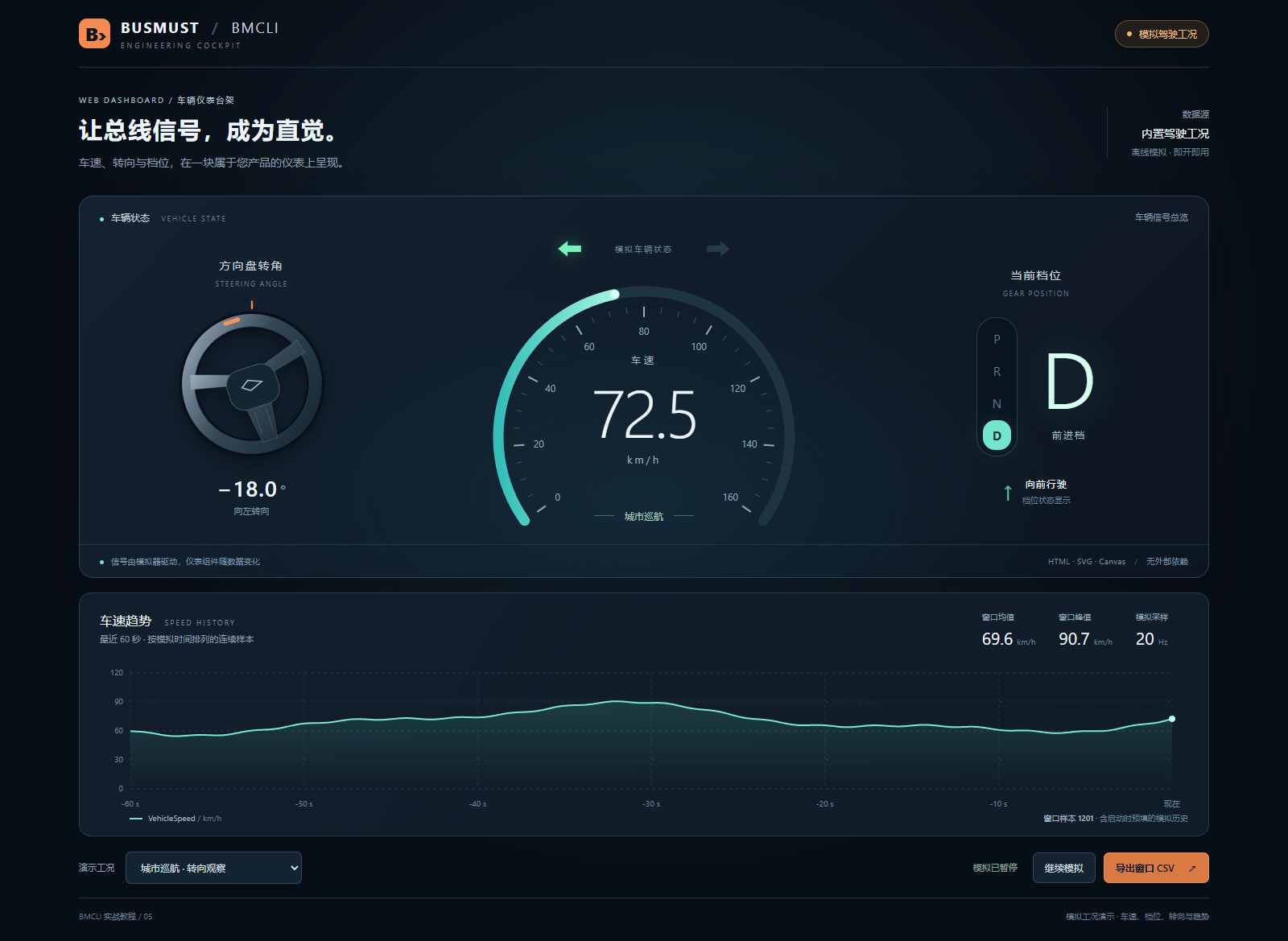
Figure 5-1. Actual browser screenshot of the bundled digital cockpit. Web components draw speed, steering, gear, turn indicators, and curves; data comes from built-in simulated scenarios.
The screenshot shows 72.5 km/h, gear D, and steering angle -18°. SVG draws the instruments and wheel; Canvas draws the curve. All components update with simulated data. Open the example to switch scenarios, pause observation, and export the current simulated curve as CSV.
Speed is sampled in simulation at 20 Hz over the last 60 seconds. Prefilled simulated history makes a complete curve visible immediately.
Connect the Runnable Page to Real Signals
Section titled “Connect the Runnable Page to Real Signals”Open cockpit/index.html in the examples directory to run the illustrated cockpit simulation without installing frontend dependencies. web/index.html provides a basic read-only BMCLI page receiving VehicleStatus Speed and Gear. These two entry points demonstrate UI implementation and data integration separately.
You can also download the digital cockpit source package, extract it, and open cockpit/index.html. The package provides the offline cockpit. For the BMCLI-connected page and bench setup, see the complete example guide.
For your project, ask AI to retain the components and replace simulated data with BMCLI signals. Bind speed, gear, steering, and turn indicators according to the DBC, checking units, enumerations, and steering direction individually. Show “Not configured” for components awaiting configuration.
Use the project DBC for gear names, units, and steering direction. For example, once BMCLI returns the steering angle, the page rotates its graphic accordingly; no additional steering-wheel-widget API is needed.
Zero speed and stopped data updates are different states. With real signals, show “Waiting for data” or “Data stale” when updates stop, break the curve across gaps, and resume drawing after recovery.
Implementation Explained: How the UI Calls BMCLI
Section titled “Implementation Explained: How the UI Calls BMCLI”The bundled read-only page demonstrates how BMCLI supplies bus signals to a web page. Transmission and recording controls can build on this foundation.
Bus Services Working with Business Services
Section titled “Bus Services Working with Business Services”BMCLI connects hardware, handles protocols, and supplies bus data. Django, Flask, or your existing business backend can handle login, users, experiment archives, and database access. Develop the page like an ordinary web application, with an added data path to the real bus.
BMCLI can host a simple panel directly. A larger system can use an independent web service whose business backend works with BMCLI. Adding login or experiment management requires neither changes to BMCLI nor a new hardware driver.
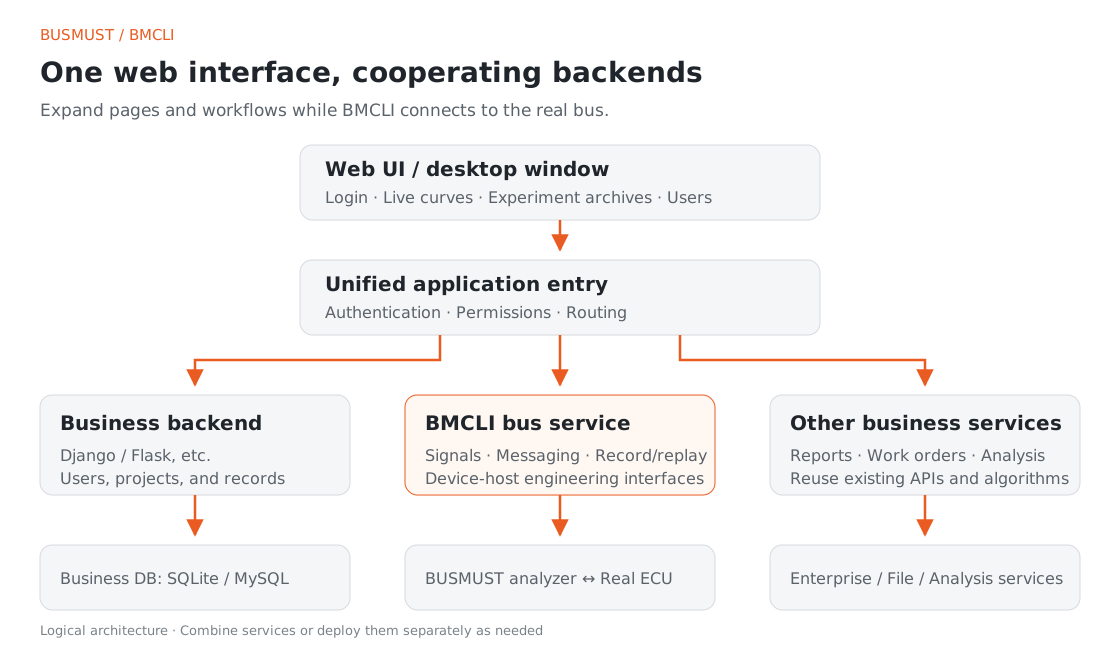
Figure 5-2. Architecture with cooperating backends. One entry point routes business requests to the appropriate service while BMCLI focuses on the real bus.
For example, the business service handles login, a database supplies experiment archives, and BMCLI supplies current speed. They can appear on one page while coming from different backends.
For multiple users, the business backend manages which devices and operations each user may access, then forwards permitted requests with BMCLI credentials. User permissions and device access each have a clear management point.
A Signal Plan Connecting the Bus and the Page
Section titled “A Signal Plan Connecting the Bus and the Page”Once started, the BMCLI Web service can provide both static pages and bus data APIs:
# Start a local Web service for page assets and signal data APIs.bmcli web start --listen=127.0.0.1:18080 ` --web-root=./vehicle-dashboard --history-capacity=4096# Query Web service state so the application can show the actual connection status.bmcli web status --format=jsonThis demonstrates the Web root option. Consult the startup guide for exact example paths and channel preparation.
The signal plan specifies the channel, DBC, and VehicleStatus message. BMCLI continuously decodes and supplies physical values, units, quality, and sequence numbers. For example, key fields in a Speed sample are:
{ "signal": "Speed", "value": 42, "raw": 4200, "unit": "km/h", "quality": "good"}The page uses 42 km/h directly, without processing raw bytes again. Relevant interfaces include:
| Interface | Purpose |
|---|---|
GET /api/v1/health |
Query service state |
GET /api/v1/signals |
Find signal plans |
POST /api/v1/signals/plans |
Create a decoding plan |
GET /api/v1/signals/latest |
Read latest signals |
GET /api/v1/signals/history |
Read history by sequence number |
GET /api/v1/signals/stream |
Subscribe to a signal stream |
The basic web/ page fetches latest about one second after each read finishes. It uses browser observation time on the horizontal axis and displays valid new samples from the last 60 seconds, providing a quick speed trend.
For a complete sampled curve, use history or subscription APIs, arrange points by sample time and sequence, and redraw independently. latest/history requests select data with plan and signal; history continues with after. See the example README for integration details.
Share Device State Across Pages
Section titled “Share Device State Across Pages”The application should centrally manage device connections, the current project, and recording tasks across navigation. When “Start recording” is clicked on the message page, first confirm BMCLI has started the task, then show “Recording” in the toolbar. The same recording state remains visible after returning to live monitoring.
Why Web Technology Suits This AI Development
Section titled “Why Web Technology Suits This AI Development”The web ecosystem offers mature layouts, tables, charts, forms, and interaction components. For engineering interfaces centered on data and workflows, AI can reuse them to present requirements quickly. Python and other languages can still handle analysis and business services; choosing a web UI does not mean abandoning existing algorithms or services.
Web applications are also convenient to self-check. With browser automation, AI can click controls, inspect requests and errors, and capture layout screenshots. CDP (Chrome DevTools Protocol) is one common debugging interface; consult its official documentation.
Ask AI to check normal operations, stale data, and service recovery before delivery. Then assess usability, display correctness, and button behavior with the real bench.
Delivery Option 1: A Desktop Application
Section titled “Delivery Option 1: A Desktop Application”For a tool mainly used on a local bench, package it as a desktop application. After installation, colleagues can double-click an icon, select a project, connect devices, and begin, without manually starting background services.
Continue the AI Request: Generate a Desktop Installer
Section titled “Continue the AI Request: Generate a Desktop Installer”Package the completed vehicle instrument web application as a Windows desktop application, reusing its pages and BMCLI backend. Use Electron, provide an installer and desktop shortcut, and retain navigation, menus, toolbars, and read-only startup. On first run, check drivers, BMCLI dependencies, and Bench configuration; provide project selection and configuration saving, then remember the last project.
Manage local services carefully: detect and reuse compatible existing services and explain port or configuration conflicts. On exit, finish the current recording and this application’s tasks according to the user’s choice without affecting services used by other tools.
Verify installation, launch, project switching, configuration saving, exit, and relaunch in a clean Windows environment. Deliver the installer, user guide, and check results.
Finished Result: Start Working with a Double-Click
Section titled “Finished Result: Start Working with a Double-Click”Evaluate the desktop version along a real usage path:
| Stage | What colleagues see |
|---|---|
| Install and open | Launch from the desktop shortcut, with clear explanations for missing drivers or dependencies |
| Select a project | Load its DBC and Bench and show actual devices and connection state |
| Begin an experiment | Reuse monitoring, message operations, and records pages from the browser version |
| Exit and reopen | Records are saved, configuration restores, and service state agrees with the UI |
Use this path to accept the AI-generated desktop package.
Implementation Explained: Package Existing Pages with Electron
Section titled “Implementation Explained: Package Existing Pages with Electron”Electron hosts the existing web UI while its main process organizes startup and local service management. Package frontend assets, the desktop runtime, and platform-matched BMCLI dependencies together. Store project configuration and experiment records in user-writable locations. See the official Electron documentation for details.
Pages retain their data APIs and BMCLI retains bus communication. The desktop layer checks the environment, selects projects, starts or reuses services, and cleans up on exit. Device operations pass through bounded application interfaces; the UI does not gain arbitrary local command execution. Page revisions can then serve both browser and desktop versions while protocol handling stays in one implementation.
Delivery Option 2: Cloud Access
Section titled “Delivery Option 2: Cloud Access”Some projects need cloud access to field equipment. Deploy browser and server components directly without first building a desktop installer. Instruments and analyzers remain connected to the laboratory computer; local services acquire and record data, and authorized people view live state and obtain records through a browser.
Provide AI with the available cloud server, domain, certificates, login scheme, and laboratory network conditions. Reuse existing pages and signal definitions.
Continue the AI Request: Add a Cloud Access Entry Point
Section titled “Continue the AI Request: Add a Cloud Access Entry Point”Deploy the existing vehicle instrument web application for cloud access; do not build a desktop installer for this task. The instrument, BUSMUST analyzer, and BMCLI stay on the laboratory computer. Reuse the pages, signal definitions, and experiment records. Manage field acquisition and business services as independent background services that do not depend on a desktop window or remote browser staying open.
Based on my server, domain, login scheme, and network conditions, design access using a connection initiated by the laboratory and provide an authenticated HTTPS entry point. Remote users may view speed, gear, recent curves, and connection state, and download saved experiment records. Remote permissions are read/download only; transmission, replay, and other device control remain local.
Reuse available business services and add APIs required for access control and record downloads, avoiding public exposure of BMCLI device-management APIs. Clearly show stale data on disconnection while laboratory acquisition and recording continue. Verify pages and permissions first, then complete deployment checks in my confirmed environment. Deliver access instructions, configuration, and check results. Do not add multidevice management or a long-term historical-data platform for this task.
Finished Result: Observe the Same Conditions Remotely
Section titled “Finished Result: Observe the Same Conditions Remotely”The intended experience is that a local colleague watches the instrument while a remote engineer logs in to see the same speed, gear, and updating curves. For investigation, the remote engineer retrieves records already saved locally. The remote page exposes only the permitted features; onsite personnel retain bench operations through the authorized local entry point.
The cloud extension connects these components:
Remote browser │ HTTPS: login, view conditions, download records ▼Cloud access entry point (authentication and read-only permissions) │ Controlled connection initiated by the laboratory ▼Laboratory business service ── BMCLI ── BUSMUST analyzer ── Vehicle instrument(Independent background operation, managing field acquisition and experiment records)Figure 5-3. Cloud deployment connections. Field services run independently; the remote browser accesses only authorized features.
Implementation Explained: Remote Data, Local Services
Section titled “Implementation Explained: Remote Data, Local Services”Laboratory networks can often reach the Internet but may not accept incoming connections. frp is one option: a public server and laboratory client establish access to an existing business service. See the official frp overview.
The tunnel provides connectivity; the business entry point still enforces login and read-only permissions. The cloud serves HTTPS, while the laboratory forwards only permitted view/download requests. The server must reject unavailable control actions even if a remote client constructs requests directly. Keep BMCLI locally accessible, configure tunnel authentication and encryption, and do not expose device-management APIs directly to the Internet.
Field tasks run independently, so closing a remote browser does not stop acquisition or recording. During a network interruption, the page marks data stale; after reconnection, it shows current state, while local logs cover the interruption. Acceptance should check both successful remote viewing/downloading and server rejection of unauthorized control requests.
Desktop and cloud are two delivery choices. One centers on local installation and device operations; the other on persistent field services and browser access. They can share page components and signal definitions, but startup, permissions, and service management should fit the selected approach.
Explore Further: From a Dedicated Tool to a Team Business System
Section titled “Explore Further: From a Dedicated Tool to a Team Business System”The cloud entry point already requires authentication and read-only access. As more colleagues use it, requirements become more specific: who can view each project, who can download records, how administrators disable accounts, and who ran an experiment last month. Extend these functions in the business backend.
Add Login and User Management for the Team
Section titled “Add Login and User Management for the Team”For example, ask AI to add a dedicated login page, user list, and project membership management for the instrument test team. Django can provide users, sessions, and permissions, with project access rules added on top. If the team already uses Flask, extend that framework with suitable authentication components. See Django authentication documentation and the official Flask documentation.
You can continue with this request:
Extend the existing vehicle instrument application into a team web system. Keep BMCLI as an independent bus service and add a Django business backend. Provide login, logout, account activation/deactivation, and project membership pages. Define administrator and read-only member roles, and enforce per-project viewing and record-download permissions on the server.
Store users, projects, and experiment record indexes in SQLite; retain raw bus logs as files, with BMCLI supplying bus services. Integrate the existing cloud login with the new user system using one set of accounts. Keep remote device control disabled; the administrator role does not automatically gain transmission or replay permission.
Verify unauthenticated access, disabled accounts, cross-project access, and direct API requests. Deliver pages, business services, database initialization, and deployment instructions, explaining how they cooperate with the existing BMCLI service.
Members can then log in to view their projects and records, while administrators manage memberships. Server-side checks prevent unauthorized access even when a user directly requests another project’s APIs.
Make Experiment Records Queryable Business Data
Section titled “Make Experiment Records Queryable Business Data”After establishing users, ask AI to turn a file list into an experiment archive searchable by project, operator, time, and conclusion. Opening a record shows notes, parameters, and raw-log links. The business backend stores these details in a database; BMCLI continues acquisition, with experiment IDs and file identifiers linking them. Choose SQLite, MySQL, or another database according to concurrency, backup, and deployment requirements.
Live signals and historical archives can also share one page: current speed from BMCLI, past conclusions from the database, and project tickets from existing enterprise APIs. Adding these services turns the dedicated tool into an IoT web system connected to real equipment. BMCLI supplies bus capabilities, while the UI and business workflows grow with project needs.
Further Reading
Section titled “Further Reading”These references cover the interfaces used here; query local JSON Help for individual parameters.
- Web Services and API Access (web)
- DBC Decoding for Page Signals (dbc)
- Message Transmission and Reception APIs (message)
Download this tutorial’s companion examples (ZIP)