
XCP Main Window
The modeless XCP Main Window keeps the normal BUSMASTER CAN, Message Window, logging, TX Task, and UDS workflows available while you measure or calibrate an ECU. Its main workspace contains the A2L browser on the left and the active measurement/calibration workset on the right.
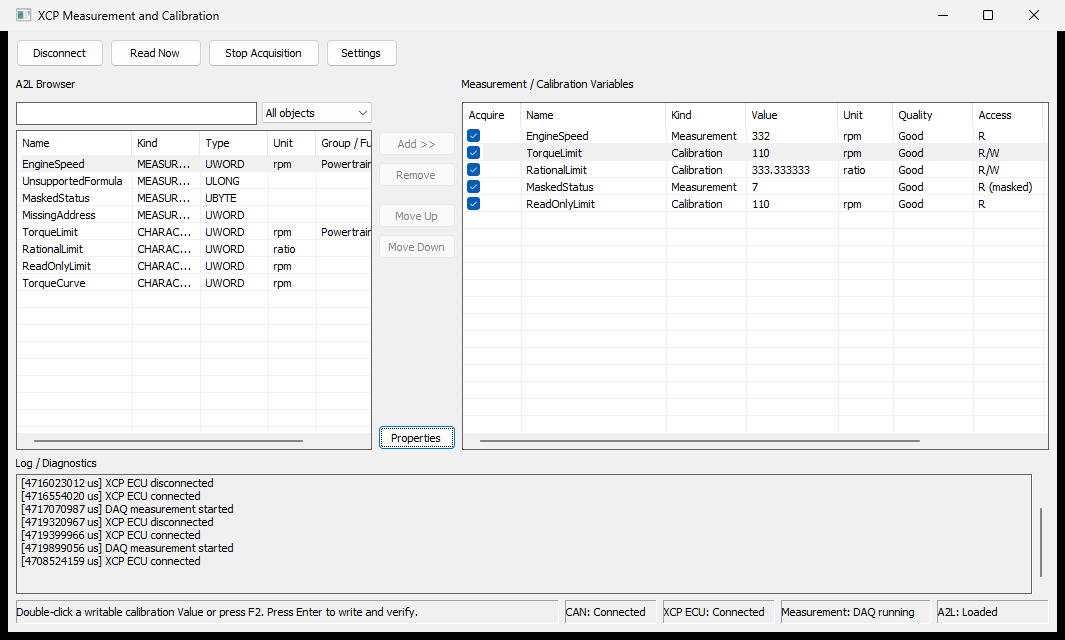 The numbered descriptions follow the screenshot from top to bottom and left to right:
- Common actions contain one Connect/Disconnect toggle, Read Now, one Start/Stop Acquisition toggle, and Settings. The text and enabled state follow the current session state.
- A2L Browser searches and filters the loaded MODULE objects. Select an object and use Add, double-click, press Enter, or choose Add from the context menu.
- Workset controls form a vertical rail between the browser and the workset. Add and Remove are at the top, Move Up and Move Down are in the middle, and Properties is at the bottom. The same object-specific commands are available from the two context menus.
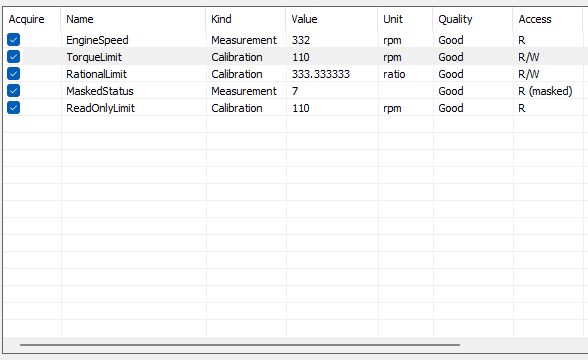
- Measurement / Calibration Variables is the workset. Acquire check boxes include objects in continuous Polling or DAQ. The Value column displays the latest ECU value; double-click or press F2 on a writable calibration Value to edit it. Workset membership, order, and Acquire selections remain fixed while acquisition is running.
- Log / Diagnostics is always visible and records connection, acquisition, write, timeout, fallback, and recovery events. Routine SHORT_UPLOAD responses and DTO samples do not flood this area. New events do not force the view back to the end while you read earlier lines. Use Properties for stable, read-only A2L metadata.
- Operation hint and status share one bottom row. The wide hint cell is followed by compact Host CAN, XCP ECU, Measurement, and A2L cells. A high Polling load appears only as a Measurement warning.
Read Now reads the highlighted resolved scalar rows once; it does not change Acquire check boxes. To calibrate one writable scalar CHARACTERISTIC, double-click its Value cell or select it and press F2, enter the physical value, and press Enter. BUSMASTER validates the number and A2L limits, writes only that object, reads it back, and then displays the confirmed ECU value and result. Clicking or selecting elsewhere cancels the editor without sending. The BUSMASTER global Esc shortcut remains Host CAN disconnect. Disconnect can be used directly while acquisition is active; BUSMASTER stops acquisition and closes the XCP session without closing Host CAN.
Plot XCP measurements in Signal Graph
Section titled “Plot XCP measurements in Signal Graph”Add the required MEASUREMENT objects to the workset and check Acquire for the rows that should update continuously.
Open CAN –> Signal Graph –> Configure, click Configure Signals…, and expand XCP. The tree is built from the current parsed XCP workset. Expand the MODULE and measurement object, select Physical, and add it to the configured element list.
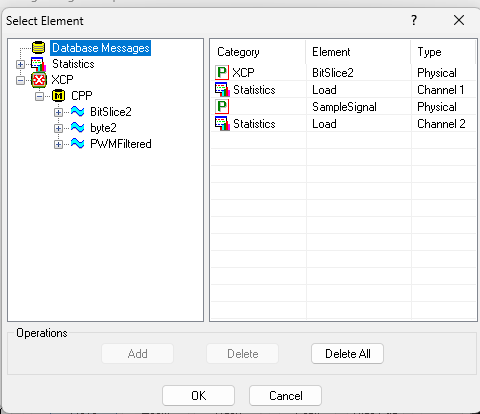
- Expand XCP, the selected MODULE, and the measurement object.
- Confirm that the configured list shows category XCP, the intended element, and type Physical.
- Use Add or double-click the Physical leaf, then click OK.
Connect Host CAN and XCP, then start acquisition. Signal Graph receives the latest physical values for the configured XCP measurements. Stopping acquisition or disconnecting XCP stops new samples but does not remove the configured graph element.
Authoritative source: BUSMASTER DITA help source XCP_Main_Window.dita, compiled into BUSMASTER.CHM with the application.