
Node Composition
Creating Node Compositions:
To create Node Configuration right click on the Node Composition element in the element view and click on popup menu ‘New’.Create Node Configuration dialog is as shown below.
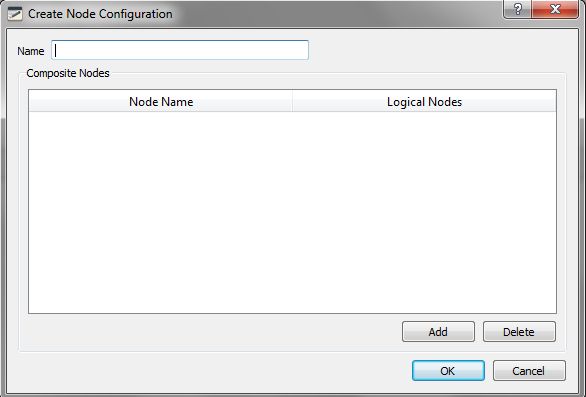
General Properties: Name: Name of the Node Configuration should follow C identifier rules and should be unique. Adding Node Composition: To Add Node Composition, click on ‘Add’ button which adds a new row in Node list. Node Name drop down will be populated with the list of Nodes available. Select the Node from the Node Name drop down. Specify the logical nodes in the Logical Nodes field. Multiple Logical Nodes can be specified separating with comma. Deleting Node Composition Item: Select the Node Composition Item in the list and click on ‘Delete’ button
Editing Node Compositions:
To edit existing Node Configuration right click on the Node Composition in the Element view and click on ‘Edit’. ‘Edit Node Configuration’ dialog is displayed as shown below.
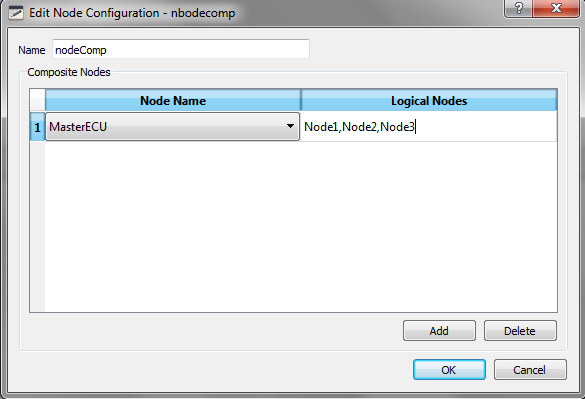 Deleting Node Composition:
To delete Node Configuration, right click on the Node Configuration in the Element view and click on the popup menu ‘Delete’. A confirmation message will be displayed before deleting the Node Configuration.
To save the changes click on ‘OK’ button. Errors are displayed if validation fails.
The following validations are performed: Node Configuration name will be checked for its uniqueness Logical Nodes will be checked for its uniqueness
To discard the changes click on ‘Cancel’ button.
Authoritative source: BUSMASTER DITA help source LIN_Editor_NodeComposition.dita, compiled into BUSMASTER.CHM with the application.