
BUSMASTER XCP: Write, verify and restore a calibration value
Applies to BUSMASTER 3.2.2.50. Screenshots use the Chinese interface.
7. Optional: change a calibration value and verify readback
Section titled “7. Optional: change a calibration value and verify readback”After measurement practice, you can proceed directly to section 8. Before practising calibration, record the original parameter value and check its write permission, allowed range and device state. This example uses SpeedLimit.
- Return to the XCP main window and click Stop Acquisition, keeping the XCP ECU connected.
- Select SpeedLimit, read it immediately and record the original value, 305. Double-click its Value cell or select the row and press F2.
- Enter physical value 350 and press Enter. This immediately writes the ECU parameter and automatically reads it back for verification.
- Confirm 350, Good quality and Write verified as the last result. Write 305 back in the same way and confirm restoration before continuing.
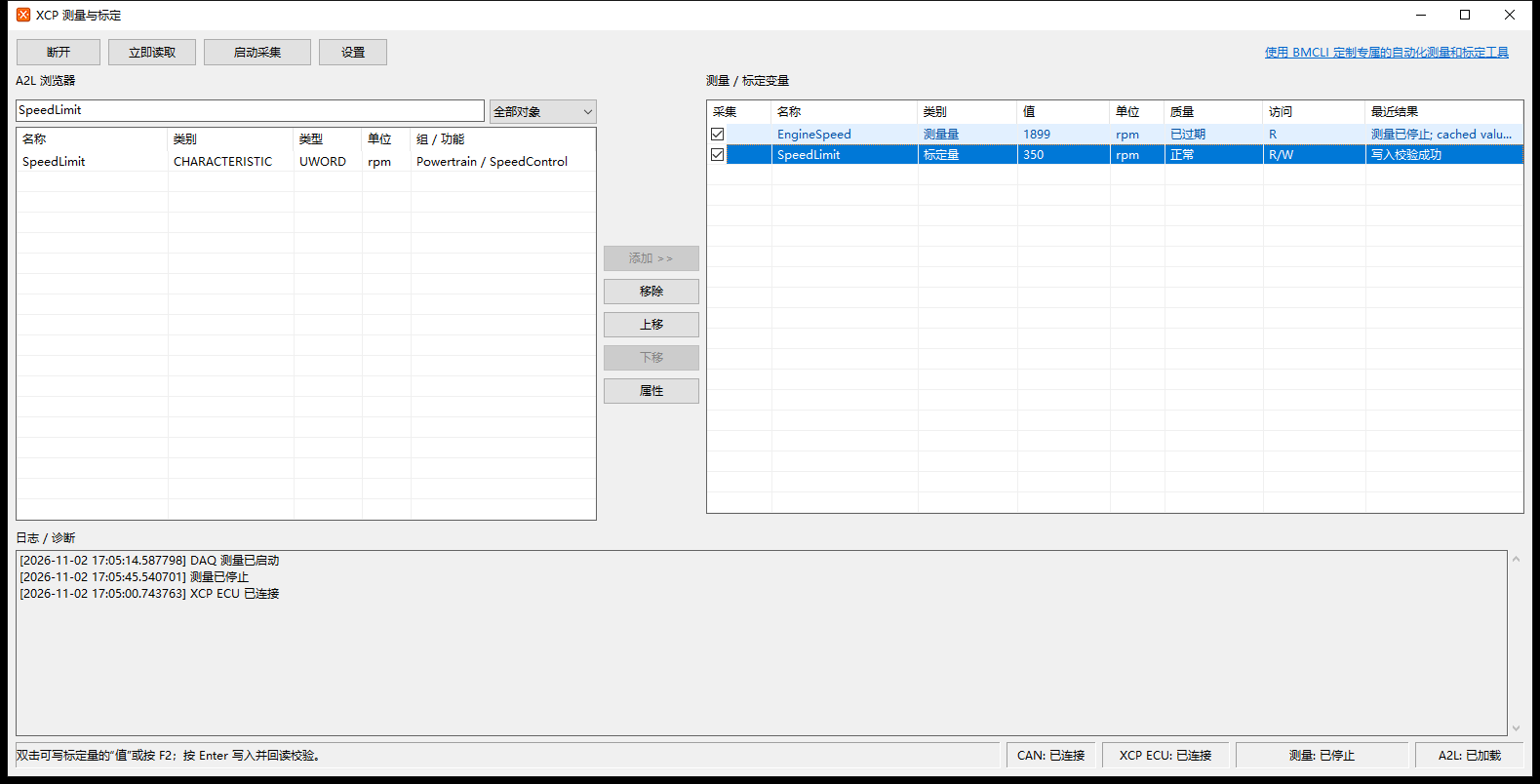
SpeedLimit readback after writing 350; EngineSpeed is stale after acquisition stops.
This exercise edits a scalar object with R/W access. Click elsewhere to cancel an uncommitted edit; Esc disconnects the main CAN connection.
If a write times out and its result is unclear, check Log / Diagnostics at the bottom of the main window and restore communication. Read the parameter’s current value before deciding whether to write again.
Series overview · Previous: Reading and DAQ · Next: CSV export and project storage
Use the download center for current and archived BUSMASTER releases.